## [Filter The Results of a dir Command](/blog/filter-results-dir-command)
Today’s Script Tip comes from Pernelle Marone Hitz , Lead Applications Engineer at Ansys, and Vishnu Venkataraman, Sr. Applications Engineer at Ansys. In this tip we’ll go over how to filter the results of a `dir` command.
**Pernelle**: To check all available methods and properties of an object we often use the *dir()* command.
For example, to check what’s available for an object referenced by “connect”, we’ll use:
```
dir(connect)
```
If the returned list is long, it is very useful to filter it by some keywords that we’re interested in. For this, the *filter()* method can be used. For example, to get all methods and properties that have a “Geometry” keyword in their name, use:
```
filter(lambda x: ("Geometry" in x), dir(connect))
```
**Vishnu**: To create a button using what Pernelle mentioned above could be useful tool too.
All you need to do is import the button in mechanical to use this.
**How to use:**
1. Click on an object in mechanical tree
2. Click on this button
3. Enter a keyword to search for methods and properties
4. Returns list of all methods and properties available.
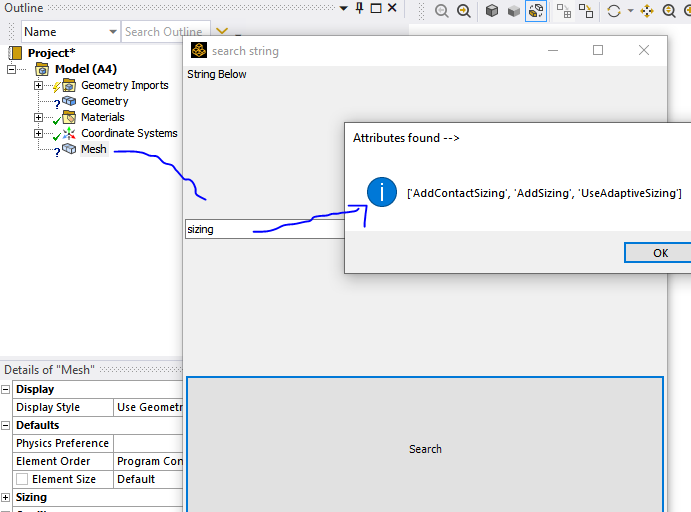*Adaptive sizing example*
```
# Script:
import clr
clr.AddReference("Ans.Utilities")
clr.AddReference('Ans.UI.Toolkit')
clr.AddReference('Ans.UI.Toolkit.Base')
import Ansys.UI.Toolkit
import Ansys.UI.Toolkit.Base
a = ExtAPI.DataModel.Tree.ActiveObjects[0]
class Example1Window(Ansys.UI.Toolkit.Window):aLabel = None
aButton = None
aTextBox = None
mainPanel = Nonedef __init__(self):
self.Location = Ansys.UI.Toolkit.Drawing.Point(500,500)
self.Text = 'search string'
self.Size = Ansys.UI.Toolkit.Drawing.Size(500,500)
self.StatusBar.Visible = False
self.__BuildUI() #this will be defined later
self.BeforeClose += Ansys.UI.Toolkit.WindowCloseEventDelegate(self.Window_Close)def __BuildUI(self):
self.mainPanel = Ansys.UI.Toolkit.TableLayoutPanel()
self.Add(self.mainPanel)
self.mainPanel.Columns.Add(Ansys.UI.Toolkit.TableLayoutSizeType.Percent, 100)
self.mainPanel.Rows.Add(Ansys.UI.Toolkit.TableLayoutSizeType.Percent, 33)
self.mainPanel.Rows.Add(Ansys.UI.Toolkit.TableLayoutSizeType.Percent, 34)
self.mainPanel.Rows.Add(Ansys.UI.Toolkit.TableLayoutSizeType.Percent, 33)
self.aLabel = Ansys.UI.Toolkit.Label('String Below')
self.mainPanel.Controls.Add(self.aLabel, 0, 0)
self.aTextBox = Ansys.UI.Toolkit.TextBox()
self.aTextBox.Text = 'Search string'
self.mainPanel.Controls.Add(self.aTextBox, 1, 0)
self.aButton = Ansys.UI.Toolkit.Button('Search')
self.aButton.Click += Ansys.UI.Toolkit.EventDelegate(self.On_Click)
self.mainPanel.Controls.Add(self.aButton, 2, 0)def On_Click(self, sender, args):
clr.AddReference("Ans.UI.Toolkit")
clr.AddReference("Ans.UI.Toolkit.Base")
mystring = str(self.aTextBox.Text)
try:
result = filter(lambda x: mystring in x.lower(), dir(a)+dir(a.InternalObject))
except:
result = filter(lambda x: mystring in x.lower(), dir(a))
Ansys.UI.Toolkit.MessageBox.Show(self, str(result), 'Attributes found -->', Ansys.UI.Toolkit.MessageBoxType.Info, Ansys.UI.Toolkit.MessageBoxButtons.OK)
print self.aTextBox.Text
def Window_Close(self, sender, args):
Ansys.UI.Toolkit.Application.Quit()class ExampleOne:ex1 = None
def __init__(self):
self.ex1 = Example1Window()
def Run(self):
Ansys.UI.Toolkit.Application.Initialize()
self.ex1.Show()
Ansys.UI.Toolkit.Application.Run()
example = ExampleOne()
example.Run()
```