## On this page
# Documentation
Last update: 16.07.2025
> **Important Note:** You are reading a documentation for AVxcelerate Asset Preparation API v3.
>
> To consult the documentation of a prior version of AVxcelerate Asset Preparation API, go to the [Ansys Developer Portal](https://developer.ansys.com/).
>
> Please refer to the [AVxcelerate Sensors 2024 R2 Release Notes](https://ansyshelp.ansys.com/account/secured?returnurl=/Views/Secured/corp/v242/en/vss_releasenotes/vss_releasenotes.html) to get the complete list of changes introduced in version 3 compared to version 2.
## Introduction
Intended for developers who need to streamline the preparation of AVX assets and tracks, AVxcelerate Asset Preparation API exposes the interfaces required to prepare AVX assets and tracks.
It allows you to:
- create geometries,
- apply physical properties
- organize geometries into a scene tree in order to:
- generate an AVX asset,
- add the scene tree to an environment to generate an AVX track.
The AVX assets and tracks created using the API can be:
- exported as files written on the disk (\*.asset or \*.track), which can be used in a sensors simulation, and also opened in AVxcelerate Asset Preparation Editor
- streamed to the Sensors Simulator API server, see [Data Streaming with Chunk](#chunk_data_format).
A Python sample illustrating how to use this exchange format is provided in *Optical Products/VRXPERIENCE/APIs/Asset\_Preparation\_API/Samples/Python* (*asset\_prep\_to\_avx\_sensors\_streaming.py*).
Using AVxcelerate Asset Preparation API, you can develop:
- an add-on for a terrain creation tool to export AVX tracks
- an add-on for a 3D computer graphics software to export AVX assets
- a custom exporter to convert data from any standard format (obj or fbx for instance) to the AVX format
- a script to automate the physics-based preparation process of AVX tracks and assets
- a "live terrain creation" capability in your custom co-simulation module (add-on for your driving simulator) created with AVxcelerate Sensors Simulator API
### Current Version Limitations
Creating animated pedestrians or animated animals is not possible.
This API is meant to be a one-shot AVX Assets and Tracks creation tool. Once exported from the AVxcelerate Asset Preparation API, AVX Assets and Tracks cannot be imported to the API.
### Definition of Terms
Here are the definitions of some important terms used throughout the AVxcelerate Asset Preparation API.
- An AVX **track** is the world environment in which the sensors simulation will take place. It must be based on the road/track/terrain (the terminology depends on the driving simulator) including the road logic, terrain topography, road and landscape decoration.
- An **Asset** is an element to be included in an AVX sensors simulation, such as a vehicle, a street light or a traffic sign.
- content: geometries (3D representation + properties) organized into a scene tree
- format: packaged in the format as expected by AVxcelerate Sensors Simulator
- An **Entity** is any object created through the API that can be packaged within an AVX format and exported, as chunks or as a file, from the API or imported as chunks. Among all the objects that can be created using the API, only the following are entities:
- Scene Tree (asset)
- Environment (track)
- Resource In the context of the AVxcelerate Asset Preparation API, a **Resource** is an external file that can be uploaded, then referenced as a property of an object. For more details about the accepted type of resources, see [Resource Preparation Service](#resource_prep_service).
- An **Object** is any component created through the API and accessible via its identifier.
- A unique **Identifier** is automatically assigned to any object as soon as it has been created. This identifier is the key for accessing the binary data representing the object kept in memory.
> **Note**: The "in-memory" data is non-persistent, objects are kept in the "collection" only as long as the server is running.
The identifier of an object is needed for various purposes, for example:
- when creating an object under a scene tree: to define its parent
- to reference an object in another service (e.g. referencing a scene tree in an environment, referencing a geometry as a geometry instance under the node of a scene tree, referencing a surface source in the material part properties of a geometry)
- for entities: to export an entity as chunks or as a file (e.g. exporting a scene tree as an asset)
- to edit the properties of an object
### gRPC Services
AVxcelerate Asset Preparation API is composed of different [protocol buffer](https://developers.google.com/protocol-buffers) contracts and [gRPC](https://grpc.io/) services.
The main benefit of using gRPC with protocol buffers is that the contract files (.proto) can be compiled into [different programming languages](https://grpc.io/docs/#official-support).
In this document, some code snippets written in C# programming language are provided. Python samples demonstrating the usage of the Asset Preparation API are provided in the *Asset\_Preparation\_API* folder.
This API includes the following gRPC services:
- [Information Service](#information_service)
- [Reset Service](#reset_service)
- [Resource Preparation Service](#resource_prep_service)
- [Geometry Preparation Service](#geometry_prep_service)
- [Scene Tree Preparation Service](#scenetree_prep_service)
- [Environment Preparation Service](#env_prep_service)
- [Natural Sky Preparation Service](#nat_sky_prep_service)
- [HDRI Sky Preparation Service](#hdri_sky_prep_service)
- [Material Preparation Service](#material_prep_service)
- [Surface Source Preparation Service](#surface_source_prep_service)
- [Directional Light Preparation Service](#dir_light_prep_service)
- [Point Light Preparation Service](#point_light_prep_service)
All those services rely on the [Asset Preparation server](#asset_prep_server).
## Asset Preparation Server
To access the AVxcelerate Asset Preparation API, the server must be started so that the services are active.
The script to start the server is provided in the *Asset\_Preparation\_API* folder:
- on Windows: `asset_preparation.ps1` (with the default installation path the script is located in `C:/Program Files/ANSYS Inc/v242/Optical Products/VRXPERIENCE/APIs/Asset_Preparation_API`)
- on Linux: `asset_preparation.sh` (with the default installation path the script is located in `/ansys_inc/v242/OpticalProducts/VRXPERIENCE/APIs/Asset_Preparation_API`)
To access the user documentation of the API, launch the script with the `user-doc` argument.
### Supported Versions
The Asset Preparation Server delivered in the 2024 R2 product package supports several versions of the API. You must specify which API version must be launched when starting the Asset Preparation Server.
### Port
The default port the server uses to communicate is TCP port 5001. If this port is already used by another application, specify the port parameter when starting the Asset Preparation Server.
### Starting the Asset Preparation Server
To start the Asset preparation server, launch the script with the `start` argument and the following parameters:
- `-apiVersion` to specify the version of the API
> **Note**: If you do not set this parameter, the server will start the API v1.
- `-port` to specify the port to communicate with the Asset Preparation server. If not set the default port (TCP 5001) is used.
Example on Windows using PowerShell:
PS C:\Users\myusername> cd "C:\Program Files\ANSYS Inc\v242\Optical Products\VRXPERIENCE\APIs\Asset_Preparation_API"
PS C:\Program Files\ANSYS Inc\v242\Optical Products\VRXPERIENCE\APIs\Asset_Preparation_API> .\asset_preparation.ps1 start -apiVersion 3
Example on Linux using PowerShell:
PS /home>cd "/ansys_inc/v242/OpticalProducts/VRXPERIENCE/APIs/Asset_Preparation_API"
PS /ansys_inc/v242/OpticalProducts/VRXPERIENCE/APIs/Asset_Preparation_API>./asset_preparation.sh start -apiVersion 3
### Stopping the Asset Preparation Server
To stop the Asset preparation server, launch the script with the `stop` argument.
Example on Windows using PowerShell:
PS C:\Program Files\ANSYS Inc\v242\Optical Products\VRXPERIENCE\APIs\Asset_Preparation_API> .\asset_preparation.ps1 stop
Example on Linux using PowerShell:
PS /ansys_inc/v242/OpticalProducts/VRXPERIENCE/APIs/Asset_Preparation_API>./asset_preparation.sh stop
## Status and Error Management
All rpc calls return a response containing a **Status**. The goal of this message is to inform about the level of success of the operations. It contains 3 pieces of information:
- The Level of success:
- fully successful,
- successful with warnings,
- unsuccessful with errors.
- The error code following [gRPC standards](https://grpc.github.io/grpc/core/md_doc_statuscodes.html), most common codes are:
- 0 for success and warning,
- 3 if some input parameters are invalid,
- 5 if an identifier is not found on the server,
- 11 if some input parameters are out of range.
- The message that describes the operation's status.
## Streaming Data with Chunk
The **Chunk** message is used for streaming binary data:
- to export assets or tracks as chunks (from the *Environment Preparation* service or *Scene Tree Preparation* service)
- to upload and download resources (*Resource Preparation* service)
All stream requests or responses in AVX Asset Preparation API use with the following description:
message Chunk {
map<string, string> metadata = 1;
bytes bytes = 2;
}
A chunk can include either:
- only metadata,
- only data,
- both metadata and data.
The service receiving the data handles the chunks in the same order as it receives them, and ignores void data. If more than one chunk contains metadata, the maps will be merged in the order they are received, overwriting items with the same keys. Therefore, the service sending the data must send the chunks sequentially.
For information about using streams as input in AVxcelerate Sensors Simulator, refer to the Upload service in AVX Sensors Simulator API documentation or to the Python sample *asset\_prep\_to\_avx\_sensors\_streaming.py*.
> **Performance advice**
>
> - Each chunk should not exceed 1MB.
> - If there are several chunks to send:
> - each chunk should be equal or superior to 256kB,
> - all the needed metadata should be sent in the first chunk and only the byte array in the other ones.
## Services
> The diagrams in the below *Data Structure* sections aim at illustrating the structure of each object that a service allows you to create. They do not represent the workflow to follow to create AVX entities.
Diagrams reading convention:
- Diagram Key reference
Underlined texts represent references to an object or entity created from another service and which is accessible via its identifier. Examples: a scene tree is referenced in an environment, a geometry is referenced in a geometry instance.
- Diagram Key Repeated
Boxes with large borders represent elements that can be repeated. Examples: a scene tree can have one or several child nodes, a geometry can include one or several material parts, a vertices array can include one vertex or several vertices.
- Diagram Key Optional
Dashed boxes represent objects or properties that are optional or only required in specific conditions. Examples: the node under a tree may have a child node.
- Diagram Key Choice
Rounded boxes represent possibilities (OneOf). Example: the rotation can be a Quaternion or Euler Angles.
> **Note**: To ease the creation of objects using this API, most of the fields in the creation request messages are not required: if a field is not specified, the default value for the field is used. Refer to the message documentation page in the *Class* section to know the default value of each field.
>
> The fields where a reference or an instance is expected however are always required.
### Information Service
The *Information* service (exposed in the *information/information.proto* file) allows you to check if the server and all the services are running properly.
**Example: System health check**
var healthClient = new Information.InformationClient(channel);
var healthResponse = healthClient.GetHealth(new Empty());
if (healthResponse == null || !healthResponse.IsHealthy)
{
Console.Write("Not all services are properly initialized. Please restart the server.");
return 1;
}
### Reset Service
The *Reset* service (exposed in the *common/reset.proto* file) allows you to reset the Asset Preparation Server, that is to say to clear all the data from the server. Resetting the server removes from the server all the "in-memory" data, namely all the data imported or created, collections and identifiers.
**Example: Server reset**
var resetClient = new Reset.ResetClient(channel);
var resetResponse = resetClient.Reset(new Empty());
Console.Write(resetResponse.Status.FeedbackMessage);
### Resource Preparation Service
The *Resource Preparation* service (exposed in the *resource/resource.proto* file) allows you to upload and download resources, such as textures and spectra to use them in your scene construction.
#### Input
The *Resource Preparation* service accepts a stream of chunks as input of the **UploadResource** call (see [asset\_preparation::v3::resource::ResourcePreparation](classasset__preparation_1_1v3_1_1resource_1_1_resource_preparation.xhtml "Resource Preparation Service.")). The service waits for metadata with the `AVX MIMEType` key, which contains the MIMEType of the sent data.
A user-defined name can be provided to the uploaded resource with the `AVX DataName` key, which contains the name of the sent data.
Here are the accepted MIME Types:
- for texture
- `image/dds`
- `image/tga`
- `image/hdr`
- `image/exr`
- `image/png`
- `image/jpg`
- `image/jpeg`
- for dielectric material
- `dielectric/dielec`
- for intensity diagram
- `intensity-diagram/ies`
- for spectrum
- `spectrum/spectrum`
- for surface state
- `surface-state/brdf`
- `surface-state/anisotropicbsdf`
- `surface-state/scattering`
- `surface-state/simplescattering`
- `surface-state/mirror`
- `surface-state/unpolished`
- `surface-state/retroreflecting`
- `surface-state/doe`
- `surface-state/fluorescent`
- `surface-state/grating`
- `surface-state/polarizer`
- `surface-state/bsdf180`
- `surface-state/bsdf`
- `surface-state/coated`
- for volume material
- `volume-material/material`
- for irradiance map
- `irradiance-map/xmp`
For irradiance maps, they must comply with the following requirements:
- unit type must be radiometric or spectral,
- spectral definition must be in the Long-wavelength infrared range of the electromagnetic spectrum going from 7 to 14 micrometers,
- merging all the layers into one is highly recommended.
You can generate an irradiance map (\*.xmp) file with Speos as follows:
1. Create an irradiance sensor. For more details, refer to [Creating an Irradiance Sensor in Ansys Speos User's Guide](https://ansyshelp.ansys.com/account/secured?returnurl=/Views/Secured/corp/v242/en/Optis_UG_ASP/Optis/UG_ASP/T_UG_ASP_sensor_creating_irradiance_sensor.html).
2. Check the orientation of the xmp: +X of the xmp map must correspond to the right lateral direction of the car (+x expressed in car coordinate system).
3. Check the orientation of the xmp:-Y of the xmp map must correspond to the forward direction of the car (-z expressed in car coordinate system).
4. Run a [simulation](https://ansyshelp.ansys.com/account/secured?returnurl=/Views/Secured/corp/v242/en/Optis_UG_ASP/Optis/UG_ASP/simulations_179503.html).
**Example: send the first chunk containing only metadata**
{c#}
await call.RequestStream.WriteAsync(new Chunk
{
Metadata = {
{ "AVX MIMEType", $"image/{Path.GetExtension(filename)[1..]}" },
{ "AVX DataName", $"{Path.GetFileNameWithoutExtension(filename)" }
}
});
#### Output
The *Resource Description* service outputs chunks as a byte stream from the **DownloadResourceAsChunks** call (see [asset\_preparation::v3::resource::ResourcePreparation](classasset__preparation_1_1v3_1_1resource_1_1_resource_preparation.xhtml "Resource Preparation Service.")). The service sends metadata with the `AVX MIMEType` key defining the type of the data, with the same format as for the **UploadResource**: `type/subtype` with the original file extension as a subtype, and the `AVX DataName` key defining the name of the data. The data is the stream of the original file. The identifier of a downloaded resource can then be used to reference the resource in a message of another service.
> **Note:** Irradiance maps cannot be downloaded, neither as chunks, nor as file because after import, the xmp file is converted into a proprietary format which cannot be converted back to the xmp file format.
### Geometry Preparation Service
The *Geometry Preparation* service (exposed in the *geometry/geometry.proto* file) allows you to build geometries from vertices.
#### Data Structure
Here is the structure of a geometry:
Geometry hierarchy
A geometry can include one vertex or several vertices as well as one or several material parts. To associate materials to areas, indices are used to reference the vertices composing the concerned primitives. You will find more details on indices in [Geometry Creation Workflow](#geometry_prep_service_workflow) and [Indices Examples](#geometry_prep_service_example).
Here are the properties of a vertex:
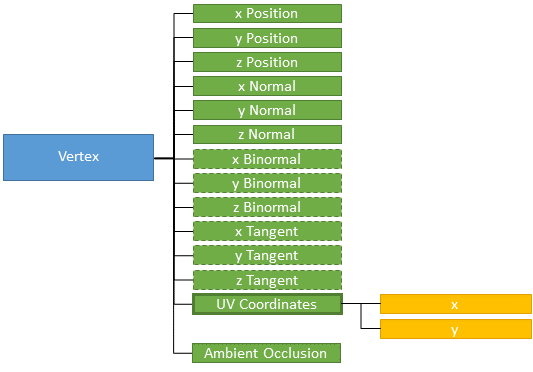Vertex Properties
The x, y and z bi-normals are needed only if the `has_binormals` setting in the geometry properties is set to true.
The x, y and z tangents are needed only if the `has_tangents` setting in the geometry properties is set to true.
When the UV count is set to a value superior to zero in the geometry properties, the UV coordinates must be repeated as many times as the value set for the UV count.
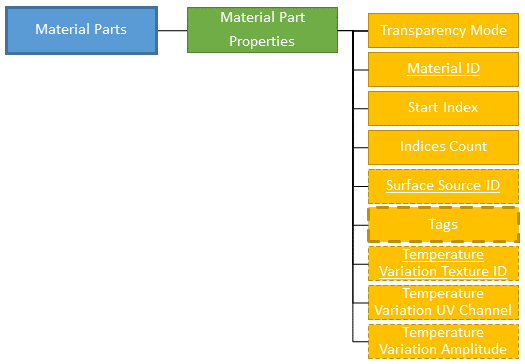Material Part Properties
In the **Material Part Properties**:
- a material created using the *Material Preparation* service must be referenced using its identifier (when no material is defined in a material part, the default material is automatically added),
- the `start_index` and `indices_count` fields define the area to which the material is applied (refer to [Geometry Creation Workflow](#geometry_prep_service_workflow) and [Indices Examples](#geometry_prep_service_example) below for more details on indices),
- a surface source created using the *Surface Source Preparation* service may be referenced, using its identifier,
- you can add or remove one or several [tags](#tags) using `added_tags` or `removed_tags`.
- temperature variation settings may also be added.
#### Geometry Creation Workflow
1. Create a geometry and set its properties.
2. Push vertices into the geometry.
3. Push into the geometry the indices of the already pushed vertices. The order in which the vertices and then the indices must be pushed depends on the winding order set in the geometry properties (clockwise, counterclockwise, double-sided).
4. Create one or several material parts.
5. In the properties of each material part, set the value of the following two fields to reference the area to which the material will be applied:
1. `start_index`, which defines the position in the indices array of the first index of the area (this will be the starting point from which the indices will be counted),
2. `indices_count`, which defines the number of indices of the area from the indices array.
> **Note:** Pushed vertices and indices are respectively stored in a vertices array and an indices array. Those arrays have zero-based numbering, meaning that the value of the index to reference the very first vertex of the array is 0 and not 1.
#### Indices Example
A geometry has been created; the winding order set in its properties is clockwise.
Five vertices have been pushed into the geometry: V0, V1, V2, V3, V4. The geometry is then composed of 3 primitives: A, B and C.
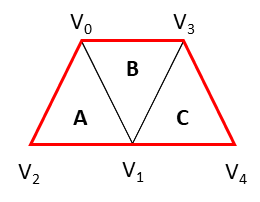Vertices and Primitives in Geometry
The indices of each primitive are:
- 0 1 2 for primitive A
- 0 3 1 for primitive B
- 3 4 1 for primitive C
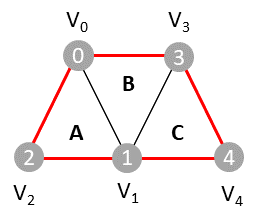Primitives in Geometry
Therefore, to be able to identify areas (primitives A, B and C) in order to associate materials with, the following 9 indices must be pushed in this order (clockwise) in the indices array:
Indices Array
Let's see how to associate a material with primitive A and another material to the area composed of primitives B and C.
Vertices and Materials
To reference primitive A in the properties of a Material Part:
- the index of the first vertex of this area is 0 which is in position 0 in the indices table, so the `start_index` is 0,
- the number of indices that define this area in the indices array is 3, so the `indices_count` is 3.
Primitive A Start Index
Primitive A Indices count
To reference the area composed by primitives B and C in the properties of a Material Part:
- the index of the first vertex of this area is 0 which is in position 3 in the indices table, so the `start_index` is 3,
- the number of indices that define this area in the indices array is 6, so the `indices_count` is 6.
Primitive B Start Index
Primitives B and C Indices count
#### Inputs
The inputs of the *Geometry Preparation* service are:
- a 3D component in any basic exchange format (for instance fbx, obj), proprietary format or any data as long as the geometries description at the vertices and polygons levels can be retrieved (for instance from an API),
- the Identifier of a material that has been created with the *Material Preparation* service,
- optionally, the Identifier of a surface source that has been created using the *Surface Source Preparation* service.
#### Outputs
The output of the *Geometry Preparation* service is the binary data of the geometry with an identifier. This identifier is to be used in the *Scene Tree Preparation* service to reference the created geometry as a geometry instance in a scene tree.
Geometries are not meant to be exported as files or as chunks. For each geometry that is referenced in a scene tree which is exported as a .asset file from the *Scene Tree* service (**GetAssetFile** call), or referenced in a scene tree that is referenced in an environment exported as a .track file from the *Environment* service (**GetTrackFile**), a .mesh file (with its associated .geometry file) is created. In other words, a geometry created through the API corresponds to a mesh in AVxcelerate Asset Preparation Editor.
### Scene Tree Preparation Service
The *Scene Tree Preparation* service (exposed in the *scenetree/scenetree.proto* file) allows you to build scene trees from geometries.
#### Data Structure
Here is the structure of a scene tree:
Scene Tree hierarchy
You can add or remove one or several [tags](#tags) using `added_tags` or `removed_tags` in:
- **Node Properties**
- **Geometry Instance Properties**
- **Point Light Instance Properties**
Here is the structure of a transform:
Transform hierarchy
#### Tags
The **Tag** message, exposed in the *common/tag.proto* file, allows you to specify parts of interest so that the assets are properly animated during the simulation. Refer to the page [asset\_preparation::v3::common](namespaceasset__preparation_1_1v3_1_1common.xhtml) for the expected case of each tag.
There are two main categories of tags: `Basic` and `Lighting System`.
Here are the Tags of the `Basic` category:
- Pedestrian
- Vehicle
- Animal
- Street Light
- Road Sign
- Simulation Object (corresponds to the **Object** tag in AVxcelerate Asset Preparation Editor)
- Custom Object (corresponds to the **Custom** tag in AVxcelerate Asset Preparation Editor)
- Vehicle Body
- Sensor Referential
- Lighting System Referential
- Wheel
- Steering Wheel
Basic tags can be added to Nodes and Geometry Instances.
Here are the Tags of the `Lighting System` category:
- Brake Light
- Low Beam
- High Beam
- Turn Indicator
- Rear Fog Light
- Front Fog Light
- Side Light
- Rear Position Light
- Reverse Light
- License Plate Light
- Daytime Running Light
Lighting System tags can be added to Nodes, Geometry Instances, Point Lights Instances and Material parts.
A property is required for the following tags:
- the Custom Object tag requires a `Name` set in its **Properties**
- the Wheel tag requires an `Identifier` set in its **Properties**
- the Daytime Running Light and Turn Indicator tags require a `Position` set in the tag's **Properties**
The following tags can hold an optional `Label` set in its **Properties**: Pedestrian, Vehicle, Animal, Street Light, Road Sign, Simulation Object and Custom Object.
The Vehicle tag can hold an optional `Irradiance Map Identifier` set in its **Properties**, which is the Identifier of an irradiance map created using the *Resource Preparation* service.
#### Inputs
The inputs of the *Scene Tree Preparation* service are:
- the geometries (referenced to using identifiers) that have been created with the *Geometry Preparation* service,
- optionally, the directional lights (referenced to using identifiers) that have been created with the *Directional Light Preparation* service,
- optionally, the point lights (referenced to using identifiers) that have been created with the *Point Light Preparation* service.
#### Outputs
Here are possible outputs of the *Scene Tree Preparation* service.
- The binary data of the scene tree with an identifier. This identifier can be used to reference the created scene tree in an environment.
- Chunks of binary data from the **GetAssetChunks** call, see [asset\_preparation::v3::scene\_tree::SceneTreePreparation](classasset__preparation_1_1v3_1_1scene__tree_1_1_scene_tree_preparation.xhtml "Scene Tree Preparation Service."). The data is the content of the asset.
- A .asset file from the **GetAssetFile** call, see [asset\_preparation::v3::scene\_tree::SceneTreePreparation](classasset__preparation_1_1v3_1_1scene__tree_1_1_scene_tree_preparation.xhtml "Scene Tree Preparation Service."). When the .asset file exported from the API is imported in AVxcelerate Asset Preparation Editor, the scene tree is converted to one .scenetree file.
### Environment Preparation Service
The *Environment Preparation* service (exposed in the *environment/environment.proto* file) allows you to build environments from scene trees.
#### Data Structure
Here is the structure of an environment:
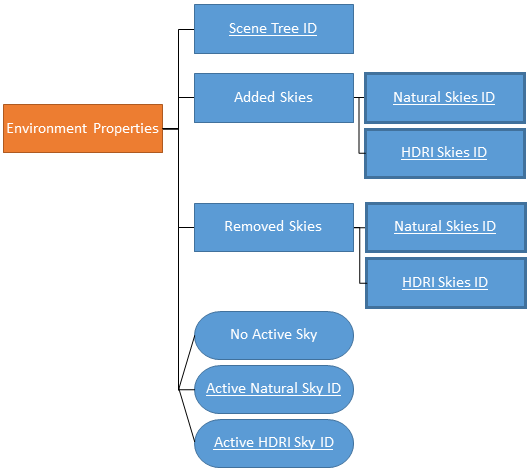Environment hierarchy
An environment references a scene tree created from the *Scene Tree Preparation* service via its identifier. It also includes one or several skies, created from the *Natural Sky Preparation* service or *HDRI Sky Preparation* service, which are referenced via their identifiers. One of these skies can be set as the active sky. If there is no active sky defined, the first sky added to the environment will be set as active. If there is no sky added to the environment, a default natural sky is automatically created, added to the track and set as the active sky.
#### Inputs
The inputs of the *Environment Preparation* service are:
- the scene tree (referenced to using its identifier) that has been created with the *Scene Tree Preparation* service,
- a list of natural skies that have been created with the *Natural Sky Preparation* service, and/or a list of HDRI skies that have been created with the *HDRI Sky Preparation* service, in the lists skies are referenced to using their identifiers,
- the identifier of one sky, natural or HDRI, added to the environment to be set as the active sky.
#### Outputs
The different outputs of the *Environment Preparation* service are:
- chunks as a byte stream from the **GetTackChunks** call (see [asset\_preparation::v3::environment::EnvironmentPreparation](classasset__preparation_1_1v3_1_1environment_1_1_environment_preparation.xhtml "Environment Preparation Service.")). The data is the content of the track.
- a .track file from the **GetTrackFile** call (see [asset\_preparation::v3::environment::EnvironmentPreparation](classasset__preparation_1_1v3_1_1environment_1_1_environment_preparation.xhtml "Environment Preparation Service.")). When the .track file exported from the API is imported in AVxcelerate Asset Preparation Editor, the environment is converted to one .env file.
### Natural Sky Preparation Service
The *Natural Sky Preparation* service (exposed in the *naturalSky/natural\_sky.proto* file) allows you to create, edit and manage natural skies.
#### Data Structure
Here is the structure of a natural sky:
Natural sky hierarchy
Once a natural sky is created, it is possible to create several states in it, each state including a distinct set of natural sky properties.
#### Output
The output of the *Natural Sky Preparation* service is the binary data of the sky with an identifier. This identifier is to be used in the *Environment Preparation* service to reference the created sky in an environment.
Natural skies are not meant to be exported as files or as chunks.
### HRDI Sky Preparation Service
The *HDRI Sky Preparation* service (exposed in the *hdriSky/hdri\_sky.proto* file) allows you to create, edit and manage HDRI skies.
#### Data Structure
Here is the structure of an HDRI sky:
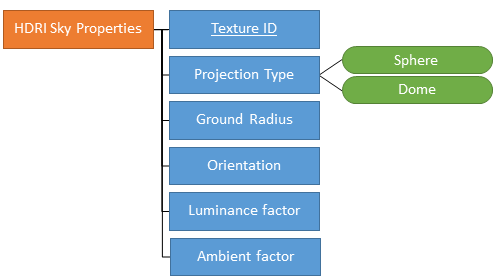HDRI sky hierarchy
Once an HDRI sky is created, it is possible to create several states in it, each state including a distinct set of HDRI sky properties.
#### Input
For HDRI skies, the identifier of a texture created using the *Resource Preparation* service is required as an input.
#### Output
The output of the *HDRI Sky Preparation* service is the binary data of the sky with an identifier. This identifier is to be used in the *Environment Preparation* service to reference the created sky in an environment.
HDRI skies are not meant to be exported as files or as chunks.
### Material Preparation Service
The *Material Preparation* service (exposed in the *material/material.proto* file) allows you to create, edit and manage materials.
> **Note**: The sample *geometry\_generation\_gltf.py* does not create materials, it uses physics-based materials provided in a library and on a mapping file.
#### Data Structure
Here is the structure of a material:
Material hierarchy
Once a material is created, it is possible to create several states in it, each state including a distinct set of material properties.
The data structure of each of the following sub-sets of material properties is detailed in the below sections:
- [Surface Optical Properties](#sop)
- [Volume Optical Properties](#vop)
- [Thermal Properties](#thermal_properties)
- [Dielectric Properties](#dielec_properties), which are optional
- [Reflection Effect Properties](#reflection_effect)
##### Surface Optical Properties
Material surface optical properties hierarchy
Then, the sub-sets of properties to define depend on the layer type.
###### Lambertian Layer
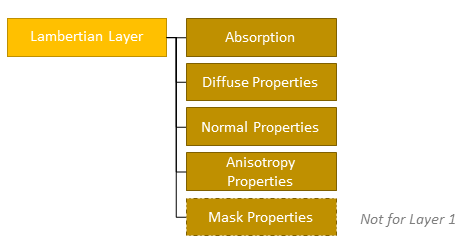Surface optical properties for Lambertian layers
###### Mirror Layer
Surface optical properties for mirror layers
###### Optical Polish Layer
Surface optical properties for optical polish layers
###### LibraryLayer
Surface optical properties for library layers
###### Rendering Layer
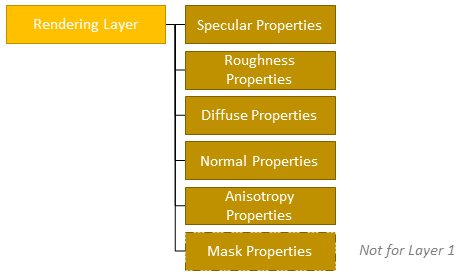Surface optical properties for rendering layers
###### Layers Properties
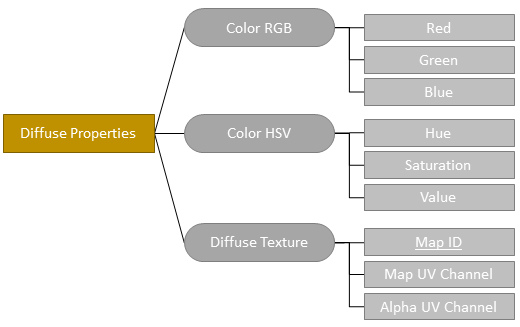Diffuse properties
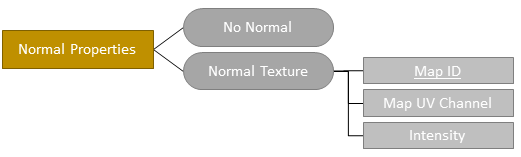Normal properties
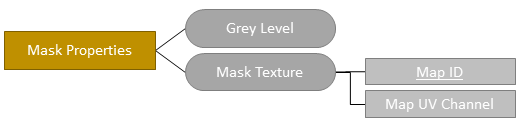Mask properties
Anisotropy properties
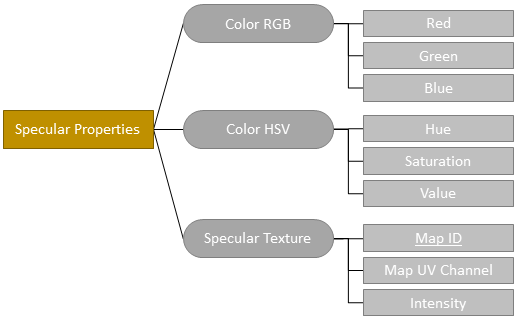Specular properties
Roughness properties
##### Volume Optical Properties
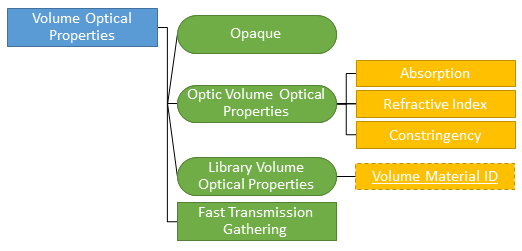Material volume optical properties hierarchy
There are 3 possible types of Volume Optical Properties: Opaque, Optic and Library. When the Volume Optical Properties type is set to `Library`, the identifier of a volume material created using the *Resource Preparation* service must be referenced.
##### Thermal Properties
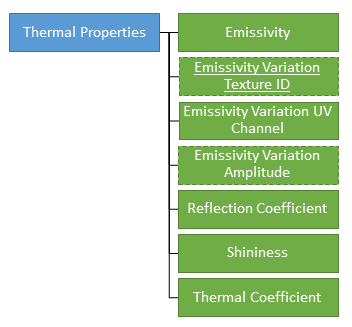Material thermal properties hierarchy
The `Emissivity Variation Texture Identifier` is optional. When set, the identifier of texture created using the *Resource Preparation* service must be referenced. The `Emissivity Variation Amplitude` is required only when an `Emissivity Variation Texture Identifier` has been set.
##### Dielectric Properties
Material dielectric properties hierarchy
The `Dielectric Properties` are optional. If you want to define the dielectric properties of the material, the identifier of a dielectric material created using the *Resource Preparation* service must be referenced.
##### Reflection Effect Properties
Material reflection effect properties hierarchy
There are 2 possible types of reflection effect: `No Reflection Effect` and `Scene HDRI`. When the Reflection Effect Type is set to `Scene HDRI`, the `Reflectivity`, `Size` and `Index of Refraction` parameters must be set.
#### Inputs
The identifier of a resource created using the *Resource Preparation* service is needed as an input in some cases.
- For the Diffuse, Normal, Mask, Anisotropy, Specular and/or Roughness Properties with the `texture` contribution type, the identifier of a texture is required.
- For `Library Volume Optical Properties`, the identifier of a volume material is required.
- If you want to define `Dielectric Properties`, the identifier of a dielectric material is required.
- In the `Thermal Properties`, if you want to set an Emissivity Variation from a texture, the identifier of a texture is required.
#### Output
The output of the *Material Preparation* service is the binary data of the material with an identifier. This identifier can be used in the *Geometry Preparation* service to reference the created material under a material part.
Materials are not meant to be exported as files or as chunks.
### Surface Source Preparation Service
The *Surface Source Preparation* service (exposed in the *surfaceSource/surfacesource.proto* file) allows you to create, edit and manage surface sources and display sources.
#### Data Structure
Here is the structure of a source:
Source hierarchy
Once a surface source is created, it is possible to create several states in it, each state including a distinct set of properties.
Here is the structure of a surface source:
Surface source hierarchy
Here is the structure of a display source:
Display source hierarchy
There are three possible types of angular diagram. When the angular diagram type is set to `Library`, the identifier of an intensity diagram created using the *Resource Preparation* service must be referenced.
In the properties of a surface source or display source, you can define whether it contributes to the ambient lighting (`Lighting Contribution`) or not (`No Contribution`).
There are three possible types of spectrum. When the texture type is set to `Library`, the identifier of a spectrum created using the *Resource Preparation* service must be referenced.
For display sources, the identifier of a texture created using the *Resource Preparation* service must be referenced.
Here are the properties for the lighting contribution:
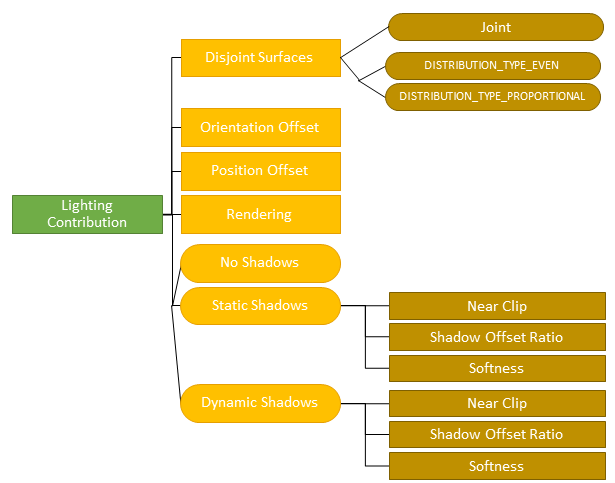Source lighting contribution hierarchy
#### Inputs
The identifier of a resource created using the *Resource Preparation* service is required as an input:
- for `Library Diagram` (identifier of an intensity diagram),
- for `Spectrum Library` (identifier of a spectrum),
- for display sources (identifier of a texture).
#### Output
The output of the *Surface Source Preparation* service is the binary data of the surface source with an identifier. This identifier can be used in the *Geometry Preparation* service to reference the created surface source under a material part.
Surface sources are not meant to be exported as files or as chunks.
### Directional Light Preparation Service
The *Directional Light Preparation* service (exposed in the *directionalLight/directionallight.proto* file) allows you to create, edit and manage directional lights.
#### Data Structure
Here is the structure of a directional light:
Directional light hierarchy
There are two possible types of directional light: `Sun` or `Custom`.
In the properties of a directional light, you can define whether it casts shadows (`Dynamic Accurate Shadows`) or not (`No Shadows`).
Once a directional light is created, it is possible to create several states in it, each state including a distinct set of properties.
#### Inputs
For `Custom` type with a `Spectrum Library`, the identifier of a spectrum created using the *Resource Preparation* service is required as an input.
#### Output
The output of the *Directional Light Preparation* service is the binary data of the directional light with an identifier. This identifier can be used in the *Scene Tree Preparation* service to reference the created directional light as a directional light instance under a node.
Directional Lights are not meant to be exported as files or as chunks.
### Point Light Preparation Service
The *Point Light Preparation* service (exposed in the *pointLight/pointlight.proto* file) allows you to create, edit and manage point lights.
#### Data Structure
Here is the structure of a point light:
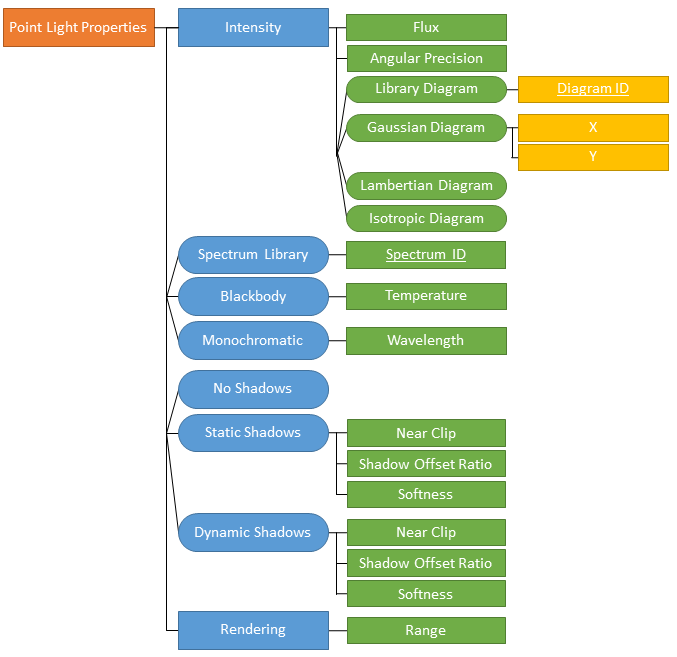Point light hierarchy
Once a point light is created, it is possible to create several states in it, each state including a distinct set of properties.
#### Inputs
When the Spectrum type is `Spectrum Library`, the identifier of a spectrum created using the *Resource Preparation* service is required as an input. When the Intensity diagram type is `Library Diagram`, the identifier of an intensity diagram created using the *Resource Preparation* service is required as an input.
#### Output
The output of the *Point Light Preparation* service is the binary data of the point light with an identifier. This identifier can be used in the *Scene Tree Preparation* service to reference the created point light as a point light instance under a node.
Point Lights are not meant to be exported as files or as chunks.
## AVxcelerate Asset Preparation API Outputs
The outputs of the AVxcelerate Asset Preparation API, namely AVX assets and tracks, can now be set as inputs for AVxcelerate Sensors Simulator.
### Asset and Track Streams
For tracks and assets exported as a byte stream from the AVxcelerate Asset Preparation API, you must use the AVxcelerate Sensors Simulator APIs to set them as inputs for a sensors simulation.
1. Use a dedicated grpc streaming service to stream the chunks (byte array) from the AVxcelerate Asset Preparation API server to the AVxcelerate Sensors Simulator API server.
2. Request the stream upload from the **Resource Uploader** service of AVxcelerate Sensors Simulator APIs.
3. Set the identifier of the uploaded resource the **LOAD** command > **Configuration** message > `SceneInfo` field:
- **AssetInfo** > **Assets** > **ResourceIdentifier** > **ID**
- **Track** > **ResourceIdentifier** > **ID**
Refer to the AVXCELERATE Sensors Simulator API Documentation published on the \[Ansys Developer Portal\]\]().
### Asset and Track Files
To check the \*.asset and \*.track files created using this API, open the files in AVxcelerate Asset Preparation Editor, refer to [AVxcelerate Asset Preparation User's Guide](https://ansyshelp.ansys.com/account/secured?returnurl=/Views/Secured/corp/v242/en/Optis_UG_VRXP/index.html).
To set the \*.asset and \*.track files as inputs for AVxcelerate Sensors Simulator for a co-simulation with CarMaker:
1. add the references to the \*.asset and \*. track files into the json co-simulation mapping file,
2. set the mapping file in the connector parameters.
Refer to [Mapping AVX to CarMaker Track and Assets](https://ansyshelp.ansys.com/account/secured?returnurl=/Views/Secured/corp/v242/en/Optis_UG_VSS/Optis/UG_VSS/T_UG_VSS_mapping_CM_assets.html) and [Setting the AVXConnector Parameters](https://ansyshelp.ansys.com/account/secured?returnurl=/Views/Secured/corp/v242/en/Optis_UG_VSS/Optis/UG_VSS/T_UG_VSS_setting_AVXConnector_settings.html).
To set the \*.asset and \*.track files as inputs for AVxcelerate Sensors Simulator through a custom connector built upon AVxcelerate Sensors Simulator API, define them in the *Simulation Control* service > **LOAD** command > **Configuration** message > `SceneInfo` field. Refer to the AVXCELERATE Sensors Simulator API Documentation published on the [Ansys Developer Portal](https://developer.ansys.com/).