## On this page
# Module specification
Last update: 16.07.2025
The way that a custom [module](glossary.xhtml#module) must interact with the Rocky UI is specified by means of a Python file. From this file, Rocky extracts two primary kinds of information:
- The definition of the custom parameters that must be displayed at specific places within the Rocky UI.
- Whether or not the module implements a custom model that will override a built-in model or will be added to the existing built-in models in Rocky.
The way in which these specifications must be coded is described throughout this chapter. It is assumed that users have a basic knowledge of the Python language.
## Structure of the specification file
The first operation that must be made in the file is the importation of some utilities, most of them defined by the Rocky Solver SDK itself. The following block includes the most commonly needed utilities:
from pathlib import Path
from rocky20.addins.addin_models import data_model, container_model
from rocky20.addins.addin_specs import RockyAddinSpecs
from rocky20.addins.addin_types import (Boolean, Quantity, String, List,
ScalarProperties)
from yapsy.IPlugin import IPlugin
The most important class that must be defined in the file is the one derived from the `IPlugin` class because it implements the method `get_addin_specs`. It is through the `get_addin_specs` method that Rocky will receive in runtime all the specifications for the module.
class CustomModule(IPlugin):
def get_addin_specs(self):
return CustomModuleSpecs
In the example above, `CustomModuleSpecs` is a class that will contain all the specifications for the module. Its implementation can follow this general example:
class CustomModuleSpecs(RockyAddinSpecs):
name = NAME
model = CustomGeneralParameters
instantaneous_breakage_model = CustomModel
material_properties = CustomMaterialProperties
material_interaction_properties = CustomInteractionProperties
geometry_properties = CustomGeometryProperties
particle_group_properties = CustomParticleGroupProperties
particle_input_properties = CustomParticleInputProperties
def CreateAddin(cls):
return cls.CreateDynamicAddin(Path(__file__).parent, 'custom_module_name')
The only items whose inclusion is mandatory in this code block are the definition of the variables `name` and `model`, besides the definition of the method `CreateAddin`. The meaning of each one of the members in this class is described as follows:
- `name` is the string label that will identify the module in the Rocky UI.
- `model` is the set of specifications for the module's general parameters. These parameters are not associated to specific entities of the Rocky UI.
- `instantaneous_breakage_model` is an example specification of a new custom model for an existing category of models in Rocky. In this case, the module is indicating that it implements a custom model for [instantaneous breakage](glossary.xhtml#instantaneous-breakage). All customizable models in the current version of Rocky are listed in Table 2.1
- `material_properties` is the set of specifications of the module's parameters that Rocky must associate to [materials](glossary.xhtml#material).
- `material_interaction_properties` is the set of specifications of the module's parameters that Rocky must associate to [materials interactions](glossary.xhtml#material-interaction).
- `geometry_properties` is the set of specifications of the module's parameters that Rocky must associate to [boundaries](glossary.xhtml#boundary) (geometries).
- `particle_group_properties` is the set of specifications of the module's parameters that Rocky must associate to [particle groups](glossary.xhtml#particle-group).
- `particle_input_properties` is the set of specifications of particle [scalar](glossary.xhtml#scalar) variables that need an initial value when particles enter into the solution domain.
- `CreateAddin` is a method that handles the loading of the compiled library file for the module when the simulation starts.
For the specification of a module to be complete, each one of the variables in the block above must be properly defined. The simplest case is `NAME`, which is a simple string label, for instance:
NAME = 'Custom Module'
The other variables are in fact classes that contain the specification of each individual parameter needed by the module. Examples of the implementation of such classes are given in the following sections.
## Module general properties
Module general properties are not associated to specific entities in a Rocky UI as are the other types of properties described in the following sections. Therefore, these properties are displayed in the **Data Editors** panel associated to the module itself, when it is selected in the **Data** panel, as shown in the example of Figure 2.1.
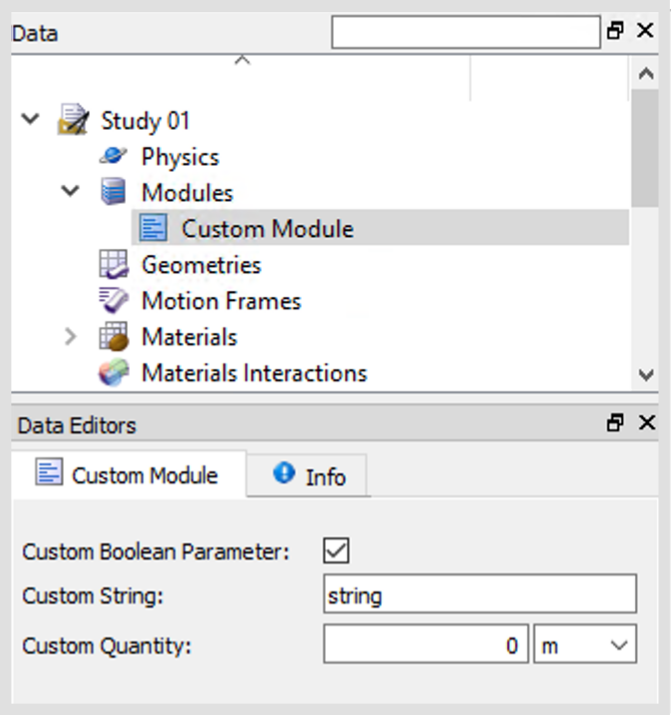
*Figure 2.1: General module parameters in the Data Editors panel of the Rocky UI*
An example of the specification of general parameters for a fictitious module is shown below:
@data_model(icon=None, caption=NAME)
class CustomGeneralParameters:
custom_boolean = Boolean(value=True, caption='Custom Boolean Parameter')
custom_quantity = Quantity(value=0.0, unit='m', caption='Custom Quantity')
custom_string = String(value='string', caption='Custom String')
This class defines three parameters, each one of a different type. The first one is a boolean parameter, the second one is a numeric parameter, and the third one is a string. When the module is activated in the Rocky UI, these parameters are displayed in the **Data** panel, as shown in Figure 2.1. When setting up a project, users can define proper values for these parameters, and Rocky will deliver them to the module when the simulation starts. In the specification of the parameters, it must be indicated the default value (the first argument) and the caption that must displayed in the UI (the last argument). Additionally, the corresponding unit must be specified for numeric parameters (the second argument). Units must be specified as strings representing valid units. Although Rocky supports different unit systems, it is advisable that custom modules define parameters using only units from the SI system. Otherwise, all necessary unit conversions will have to be handled by the custom C++ code that implements the module's functionality.
Another possibility of specifying parameters is through lists, which are useful when a module must allow users to create a number of similar parameters. These lists are displayed in the UI as tables, as shown in the example of Figure 2.2. Rows in these tables can be added or removed interactively using the tools provided by the UI. In order to specify a list as the one in the example, the following code must be included:
@data_model(icon=None, caption=NAME)
class CustomGeneralParameters:
custom_list = List(item_class=CustomListSpecs, caption='Custom List')

*Figure 2.2: General list displayed as a table in the Rocky UI.*
Here, `CustomListSpecs` is a class that includes the specification of the parameters in a row of the table. It is possible to specify any number of parameters per row, belonging to any of the three simple types mentioned above: numeric, boolean or string. The parameters in the Figure 2.2 example are specified as follows:
@data_model(caption='ListItem')
class CustomListSpecs:
custom_list__boolean = Boolean(value=True, caption='Boolean')
custom_list_quantity_1 = Quantity(value=0.1, unit='s', caption='Quantity 1')
custom_list_quantity_2 = Quantity(value=0.2, unit='m', caption='Quantity 2')
## Module material properties
A module can add custom properties to [materials](glossary.xhtml#material) apart from the ones defined by default in Rocky. The specification of these new properties must follow the pattern described in the previous section for the general module parameters. The difference is that the custom material properties will be displayed in the **Data Editors** panel associated to each one of the materials defined in a project, as shown in the example of Figure 2.3.
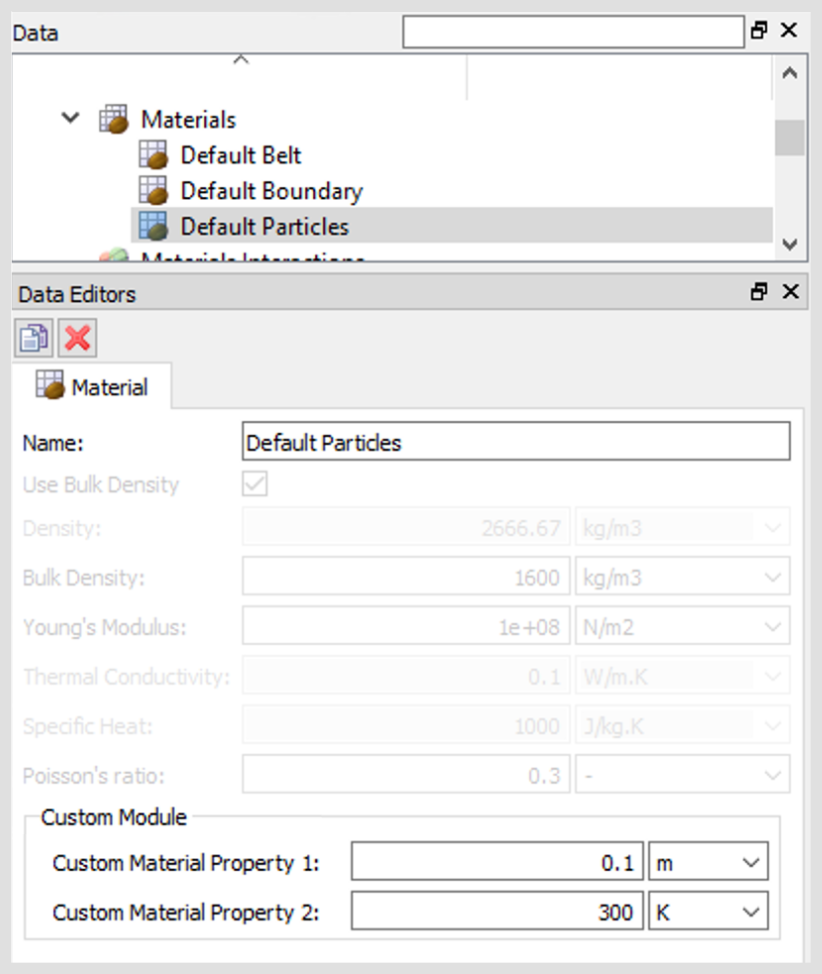
*Figure 2.3: Module material properties displayed in the Rocky UI*
The specification of the parameters shown in the example is defined as follows:
@container_model()
class CustomMaterialProperties:
mat_prop_1 = Quantity(value=0.1, unit='m', caption='Custom Material Property 1')
mat_prop_2 = Quantity(value=300.0, unit='K', caption='Custom Material Property 2')
## Module materials interactions properties
Rocky can associate module parameters to [materials interactions](glossary.xhtml#material-interaction) so that each pair of materials can have different values. The specification of these parameters is similar to the one described in section for the general parameters. In principle, it is possible to specify parameters of any of the types mentioned there.
The materials interactions parameters of a module are displayed as shown in Figure 2.4, below the built-in materials interactions parameters in the **Data Editors** panel.
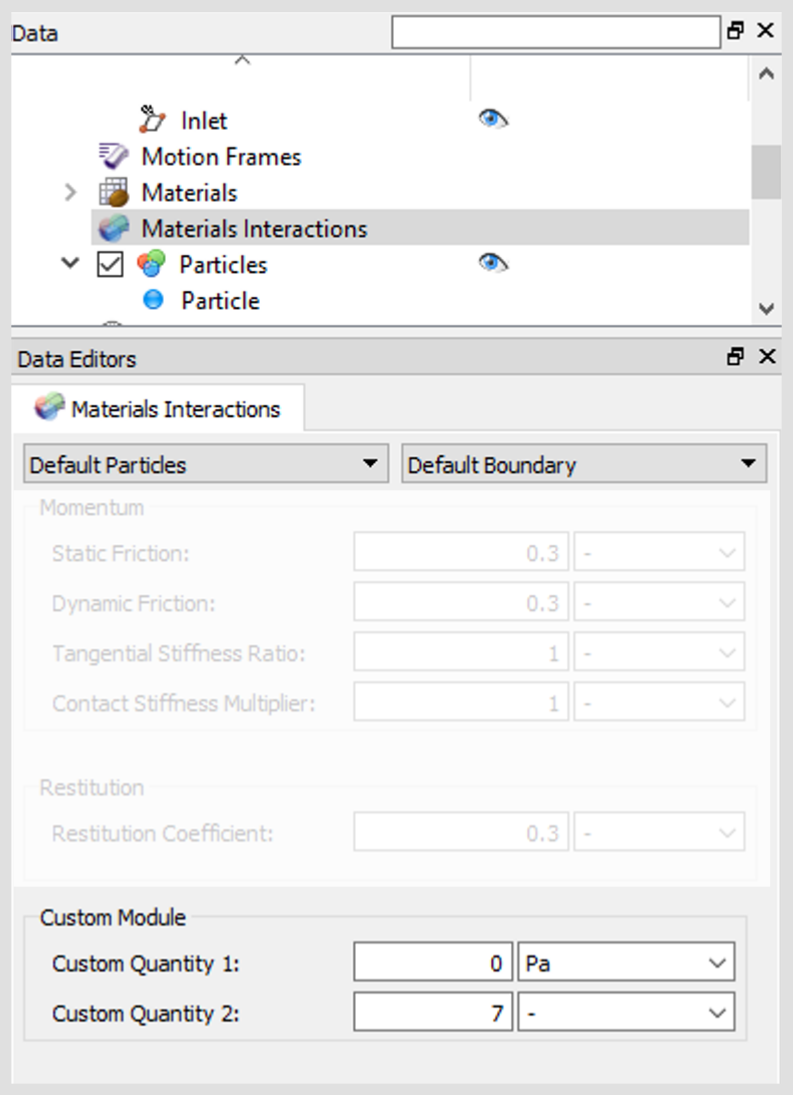
*Figure 2.4: Module materials interaction parameters displayed in the Rocky UI.*
The specification of the parameters shown in the example is defined as follows:
@container_model()
class CustomInteractionProperties:
custom_mi_quantity_1 = Quantity(value=0.0, unit='Pa', caption='Custom Quantity 1')
custom_mi_quantity_2 = Quantity(value=7.0, unit='-', caption='Custom Quantity 2')
## Module geometry properties
When Rocky associates module parameters to each one of the individual boundaries in a project, those parameters are called geometry properties. In the Rocky UI, they are displayed in the **Data Editors** panel as shown in Figure 2.5, when an individual geometry is selected in the **Data** panel.
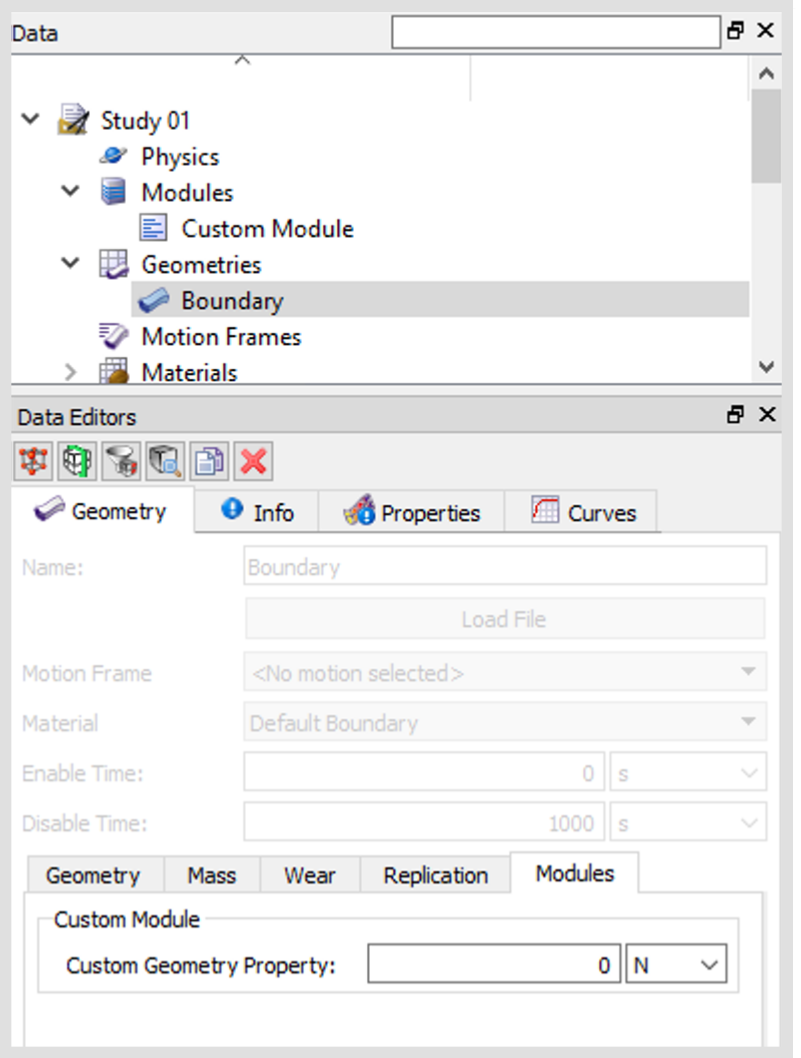
*Figure 2.5: Module geometry properties displayed in the Rocky UI.*
Parameters of any of the types described in section Module General properties (numeric, boolean, string or list) can be defined. The corresponding specification of the parameter included in the example is defined as follows:
@container_model()
class CustomGeometryProperties:
custom_property = Quantity(value=0.0, unit='N', caption='Custom Geometry Property')
## Module particle group properties
When this type of property is defined in a module, different values can be associated to every [particle group](glossary.xhtml#particle-group) in a project. In the Rocky UI, when a specific particle group is selected in the **Data** panel, a new sub-tab **Modules** must appear in the **Data Editors** panel, including the custom particle group's properties defined for all active modules in the project. An example is shown in Figure 2.6. As with other cases, parameters of any of the basic types can be defined (numeric, string, boolean or list). The specification of the parameter in the example is defined as follows:
@container_model()
class CustomParticleGroupProperties:
custom_pg_property = Quantity(value=0.0, unit='K',
caption='Custom Particle Group Property')
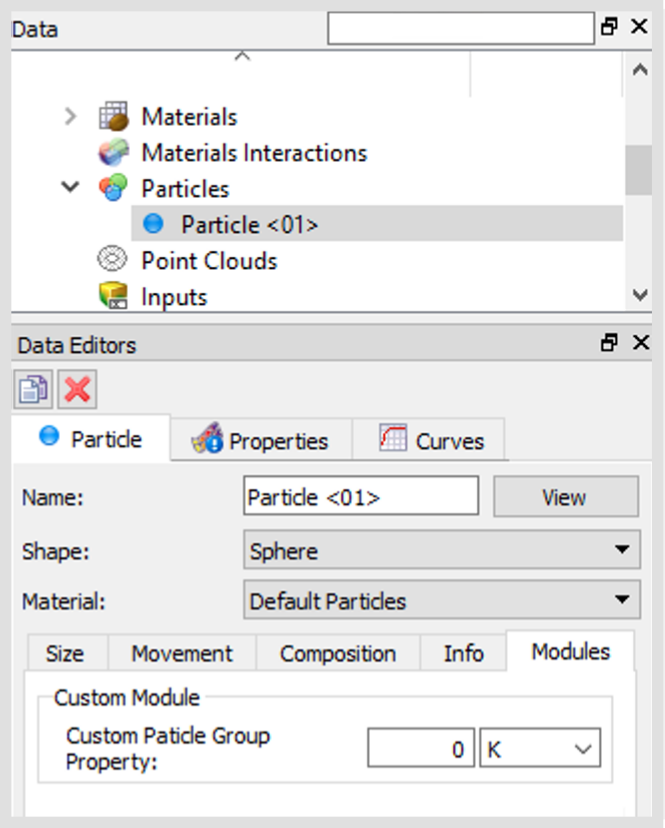
*Figure 2.6: Module particle group properties displayed in the Rocky UI*
## Module particle input properties
Rocky supports the ability to associate custom values to every particle in a simulation. In Rocky, these values are associated to special variables called particle scalars. They can be used to store particle-related data calculated by the module during the execution of a simulation. When it is necessary to assign a specific initial value to those particle scalars at the moment particles enter the simulation, a particle input property can be defined. In this way, Rocky will include in the **Data Editors** panel corresponding to a **Input** an additional sub-tab for defining module-specific particle input data, as shown in Figure 2.7 for a **Continuous Injection**. An identical sub-tab will be included also for a **Volume Fill Input**. On the other hand, for a **Custom Input**, this same information will appear at the bottom of the corresponding tab, in a section labeled with the name of the module. The values of the parameters defined in that section will be applied to all particles in the associated particle group, since it is not possible to associate individual values per particle as it is done with the built-in particle properties.
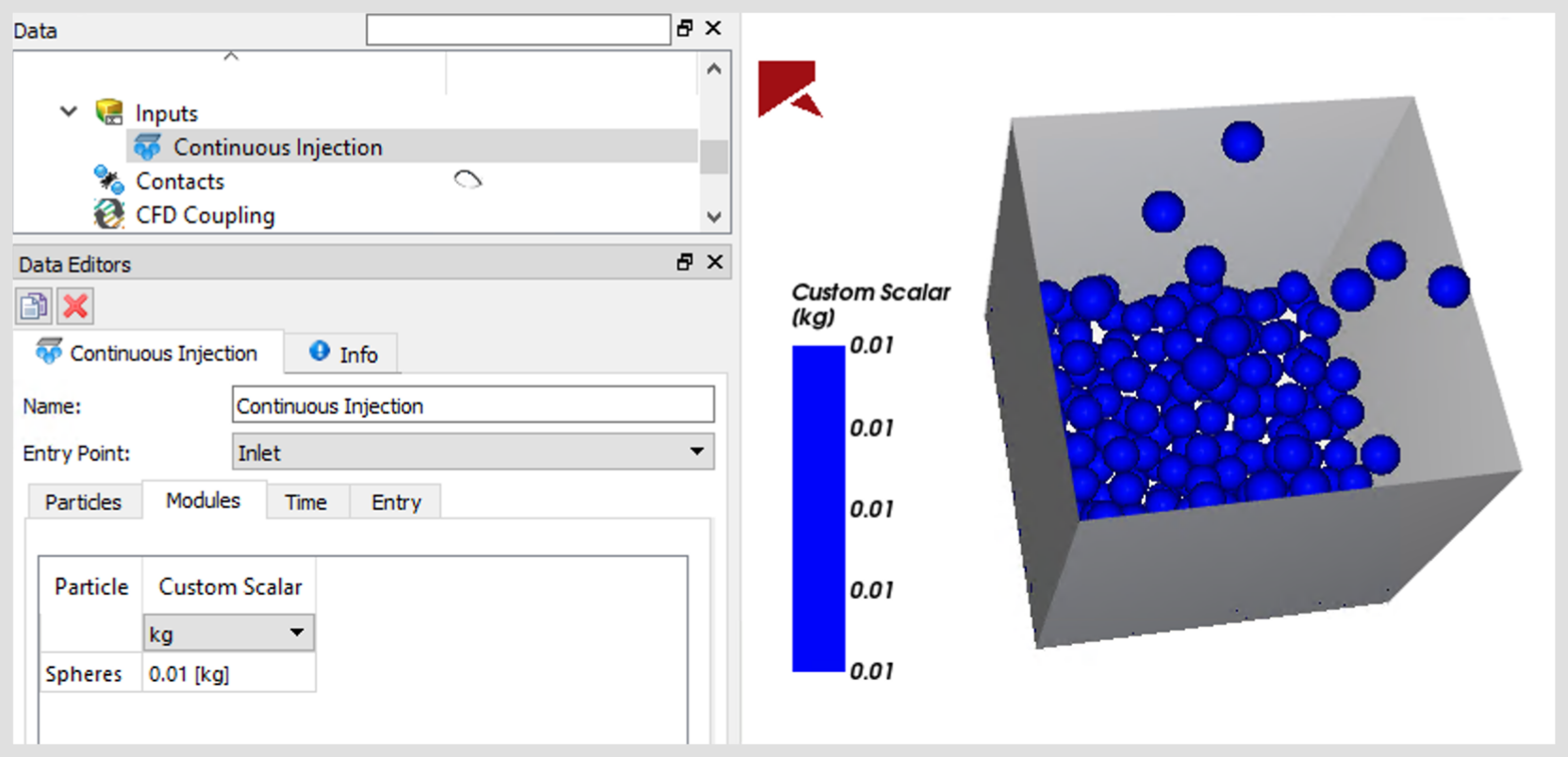
*Figure 2.7: Custom scalar displayed in the Rocky UI with the initial value set in the module’s particle-input properties sub-tab.*
The corresponding specification of the particle input property for the example shown in Figure 2.7 is defined as follows:
@container_model()
class CustomParticleInputProperties:
custom_scalar = ScalarProperties(
value=1.0, unit='kg', caption='Custom Scalar', output=True, input=True
)
A specification like the one shown above defines both a new particle scalar variable and a custom particle input property. As shown in Figure 2.7, in this way users will be able to enter the initial value of the new particle scalar variable through the Rocky UI. The last argument `input=True` in the scalar variable specification enables that option. The other additional argument, `output=True`, instructs Rocky that the values of the new particle scalar must be stored in disk throughout a simulation, and be able to be displayed in a 3D view window at output times, as shown in Figure 2.7.
## Specification of custom models
One of the main motivations for developing custom modules is to add new models and capabilities to Rocky. Currently, most of the categories of models are customizable using the Rocky Solver SDK. Table 2.1 summarizes all categories of models that can be implemented in the current version of Rocky through custom modules.
As mentioned in section Structure of the specification file, the module specification file must inform Rocky which models the module is actually implementing. Based on this specification, Rocky will either override built-in models in some categories or add the implemented custom models to the list of available built-in models in other categories. In order to specify that a module will implement a custom model, the specification class must include an attribute member with a predefined name, which must correspond to a given model category. The second column of Table 2.1 lists all attribute names recognized by Rocky as model categories.
Model category Class attribute Behavior Contact force, normal component normal\_force\_model override Contact force, tangential component tangential\_force\_model override Impact energy for instantaneous breakage impact\_energy\_model override Rolling resistance moments rolling\_resistance\_model override Adhesion force adhesion\_model override Joint mechanics in flexible particles 2 joint\_model addition Discrete breakage of flexible particles joint\_breakage\_model addition Instantaneous breakage of rigid polyhedral particles instantaneous\_breakage\_model addition Distribution of fragment sizes for instantaneous breakage fragments\_size\_distribution\_model addition Wear of surfaces due particle collisions geometries\_wear\_model addition Conduction heat transfer rate at contacts heat\_conduction\_model override Integration of the particle energy equation 2 thermal\_integration\_model override Custom kernel motion for moving geometries geometries\_motion – CFD coupling, drag force cfd\_drag\_law\_model addition CFD coupling, lift force cfd\_lift\_law\_model addition CFD coupling, virtual mass force cfd\_virtual\_mass\_law\_model addition CFD coupling, flow-induced torque cfd\_torque\_law\_model addition CFD coupling, convection heat transfer rate cfd\_convection\_law\_model addition SPH heat transfer between fluid elements and between fluid elements and geometries sph\_heat\_transfer\_model override All SPH forces between fluid elements and between fluid elements and geometries sph\_force\_model override Only SPH viscous forces between fluid elements and between fluid elements and geometries sph\_viscous\_force\_model override SPH forces due surface tension sph\_surface\_tension\_model override *Table 2.1: Class attributes associated to customizable model categories in Rocky*
The support of custom SPH forces through the `sph_force_model` specification was an experimental feature in previous versions of Rocky. It overrides all force values calculated internally, including for instance, pressure, viscous and surface tension forces. Therefore, a custom module including that specification is supposed to implement the calculation of all those forces.
The following is an example of the specification of a module that implements a custom contact model, including the normal and tangential components of the contact force:
class CustomModuleSpecs(RockyAddinSpecs):
name = 'Custom Module Example'
model = CustomGeneralParameters
normal_force_model = CustomModel
tangential_force_model = CustomModel
def CreateAddin(cls):
return cls.CreateDynamicAddin(Path(__file__).parent, 'custom_module_name')
Currently it is not possible to associate properties to a custom model itself, therefore CustomModel in the example above can be an empty class, defined as:
@container_model()
class CustomModel:
pass
As mentioned earlier, there are two possible ways in which the Rocky UI may treat a custom model:
- For model categories with global scope, like contact force models, Rocky will override any other model in the category if a module that implements a custom model in that category is enabled in a project. In that situation, all calculations related to the model category will be performed by the code in the custom module. As an illustration, Figure 2.8 shows how the contact force model categories are displayed in the **Physics** panel when the module specified by the previous code example is turned on in the project. When this situation occurs, it won't be possible to select any other model in those categories until the referred module is turned off. All model categories that behave in this way are marked with the word "override" in the third column of Table 2.1
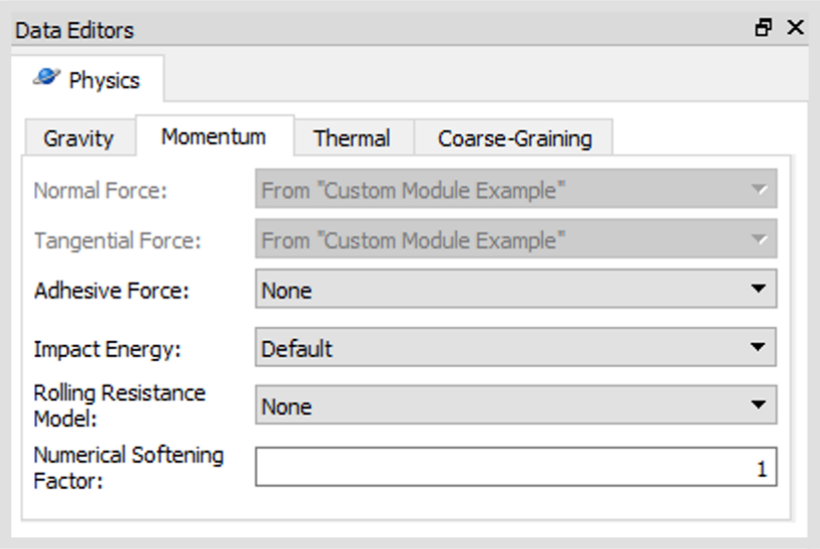
*Figure 2.8: Example of custom models overriding other models in the Rocky UI.*
- For model categories with scope per particle group or geometry, Rocky will add the custom model implemented by a module to the list of available models in the category. This can be observed in the example shown in Figure 2.9, in which a custom [joint](glossary.xhtml#joint) model implemented by a module named *Custom Module Example* is listed along with the built-in joint models. All model categories that behave in this way are marked with the word "addition" in the third column of Table 2.1.
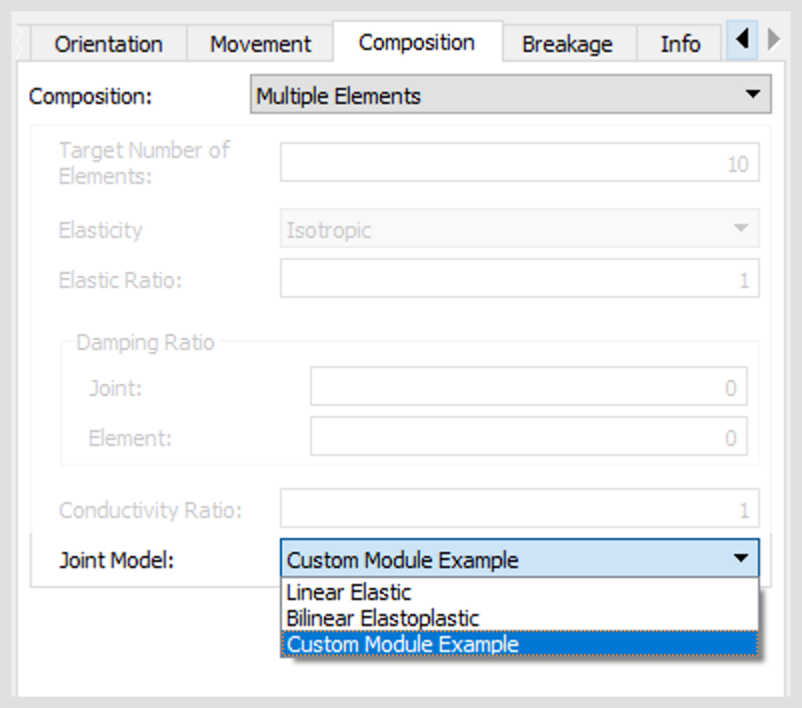
*Figure 2.9: Example of a custom model being added to the available models in a category.*
Although any module could be, in principle, include the implementation of several custom models, it is advisable to restrict only one custom model per module. The exception to this rule would be those models that have strong interdependence or that may share data between them. The typical example of the former case is the trio formed by the normal contact force, the tangential force and the impact energy models, in which the second one depends on the first, and the third one may depend on the other two. An example of the latter case is the pair of models instantaneous breakage and fragment size distribution, in which the first one can calculate custom data needed by the second one.
## Specification of variable properties
Since Rocky 2022R1, the Rocky Solver SDK gives developers the ability of setting values of selected physical properties during a simulation. In that way, properties that normally would have constant values during a whole simulation become variable properties that may depend on time, position or other simulation variables.
A module that will calculate and set values of such variable properties must indicate in the specification file which properties it will override. An example of how that specification must be done is shown in the following code snippet:
class CustomModuleSpecs(RockyAddinSpecs):
name = 'Custom Properties Example'
model = CustomGeneralParameters
particle_material_properties = ParticleVariableProperties
triangle_material_properties = TriangleVariableProperties
def CreateAddin(cls):
return cls.CreateDynamicAddin(Path(__file__).parent, 'custom_module_name')
The two specification keys `particle_material_properties` and `triangle_material_properties` indicate that the module will override material properties affecting particles and boundary triangles. The Table 2.2 lists the four categories of properties whose values can be overridden by custom modules, indicating the corresponding specification keys that must be used.
Category of properties Specification key Material properties used by particles particle\_material\_properties Material properties used by boundaries triangle\_material\_properties Material interaction properties used in particle-to-particle contacts particle\_material\_interaction\_properties Material interaction properties used in particle-to-boundary contacts triangle\_material\_interaction\_properties Geometry properties geometry\_triangle\_properties *Table 2.2: Specification keys for different categories of properties.*
Besides indicating the categories of properties, the module must specify which individual properties on each category will be overridden. This must be done by defining additional classes, as indicated in the following code snippets:
@container_model()
class ParticleVariableProperties:
thermal_conductivity = ThermalConductivity
specific_heat = SpecificHeat
@container_model()
class TriangleVariableProperties:
thermal_conductivity = ThermalConductivity
Regarding the properties for particles, the first snippet code above indicates that the thermal conductivity and the specific heat will be overridden by values stored in particle scalars that Rocky will define internally. By specifying that, the module is taking responsibility for setting values of those properties for every particle in a simulation. That implies that values specified through the Rocky UI for those properties will be ignored by the Rocky solver. Table 2.3 lists all the material properties associated to particles that can be overridden by custom modules in the current version of Rocky.
Type of property Specification key Rocky's internal scalar Thermal conductivity thermal\_conductivity ThermalConductivity Specific heat specific\_heat SpecificHeat Poisson’s ratio poisson\_ratio PoissonRatio *Table 2.3: Particle material properties whose values may be overridden by custom modules*
Similarly, the second code snippet shown above indicates that the module will replace also the thermal conductivity values specified for materials associated to boundaries. In that way, the constant value specified normally for a whole boundary will be effectively replaced by a set of values, one for each triangle making up a boundary, that the module will have to specify within the C++ code associated to it. Rocky will use internally a triangle scalar for storing the values of each one of the properties that the module will override. Table 2.4 lists the boundary properties that a custom module can redefine as variable properties in the current version of Rocky.
Type of property Specification key Rocky's internal scalar Thermal conductivity thermal\_conductivity ThermalConductivity Poisson’s ratio poisson\_ratio PoissonRatio *Table 2.4: Boundary material properties that may be overridden by custom modules, setting values per boundary triangle*
The Rocky Solver SDK also supports the substitution of the material interaction properties indicated in Table 2.5. In that case, the constant values originally specified for those properties are replaced by a set of values, each one for a particle-to-particle contact or a particle-to-boundary contact, which Rocky will store internally in contact scalars. The specification of the overriding of material interaction properties is equivalent to the one shown previously for material properties. The main difference is that it uses `particle_material_interaction_properties` or `triangle_material_interaction_properties` as specification key, as indicated in Table 2.2.
Type of property Specification key Rocky's internal scalar Coefficient of restitution restitution\_coefficient RestitutionCoefficient Coefficient of static friction static\_friction StaticFriction Coefficient of dynamic friction dynamic\_friction DynamicFriction *Table 2.5: Material interaction properties whose values may be overridden by custom modules, for both particle-to-particle and particle-to-boundary contacts.*
The Rocky Solver SDK also allows developers to override the temperature prescribed per geometry, replacing it by a set of temperature values per triangle. As shown in Table 2.6, currently this is the only geometry property that is enabled to be replaced by a custom module. An example is presented later on in section [A module implementing variable properties](usage_examples.xhtml#a-module-implementing-variable-properties) that shows how a module can perform that replacement.
Type of property Specification key Rocky's internal scalar Temperature temperature Temperature ## The .plugin file
In addition to the Python file containing an `IPlugin` subclass, every module needs a `.plugin` file that contains metadata about the module itself. Most of this metadata is not used by Rocky and serves informational purposes for module users only. However, the file itself is necessary because it is how the application discovers the module at runtime.
The file is written in a configuration language similar to the INI format used in Microsoft Windows configuration files. Here's a sample of its contents and a description of the fields:
[Core]
Name = Sample Module
Module = sample_module
[Documentation]
Author = Module Author
Version = 1.0
Website = www.example.com
Description = A short description of the module's functionalities.
You can span multiple lines by indenting after the first one, like this.
where:
- `Name` is the human-readable name of the Module, and should match the value provided in the specification class (section Structure of the specification file).
- `Module` is the name of the Python file that contains the `IPlugin` subclass, without the `.py` extension.
- `Author` is the name of the module's author.
- `Version` is the version of the module itself, which is used when updating the module with new features and bug fixes (see section [Module version](#module-version)).
- `Website` is the website or email, used as contact information.
- `Description` is a free-form short description of the module's purpose and features.
See Section [Reference](annotated.xhtml) for an example plugin file.
## Module version
Every module has two versions: one "explicit" version, defined by the module author in its `.plugin` file (section Plugin File), and the version of the Solver SDK for which the module was built. While Rocky doesn't impose any kind of semantics on the author-defined version, it can be used to convey to module users the expected stability and completeness of modules.
One suggestion is to use [semantic versioning](https://semver.org/) when defining a module's version. Briefly, the module can follow a "X.Y.Z" format, where:
- Increment the major version *X* when your module changes in a way that is incompatible with previous versions;
- Increment the minor version *Y* when your module gains new features in a backwards-compatible way;
- Increment the patch version *Z* when your make backwards-compatible bug fixes only.
### Migrating between module versions
When a module is changed in a way that makes the new specification incompatible with the old one, the author can write a function to *migrate* module properties defined in the old format to the new one. This can happen, for example, when a Rocky project containing data saved in the old specification is opened when the new specification is available.
The module author can indicate that the specification handles these migrations by implementing the following function in their specification subclass:
@container_model()
class CustomModuleSpecs(RockyAddinSpecs):
...
@classmethod
def MigrateProperties(self, previous, current):
where `previous` and `current` contain data related to the previous and current versions of the module, respectively. Each object contains the following attributes:
- `addin_version` is the version of the module;
- `sdk_version` is the version of the SDK;
- `snapshot` is a Python dictionary containing the user-provided values for the properties described by the module's specification.
As an example: suppose that the author of `CustomModuleSpecs`'s module renamed a material property from `old_name` to `new_name` and updated the module's version from "1.0.0" to "2.0.0". When opening an existing project that was originally saved using version "1.0.0" of the module, the following code would copy the value of the property called `old_name` in the previous snapshot to the property called `new_name` in the current snapshot, for every material defined in the project that is being loaded:
@container_model()
class CustomModuleSpecs(RockyAddinSpecs):
...
classmethod
def MigrateProperties(self, previous, current):
if previous.addin_version == '1.0.0' and current.addin_version == '2.0.0':
previous_materials = previous.snapshot['material_properties']
current_materials = current.snapshot['material_properties']
for previous_material, current_material in zip(
previous_materials.values(), current_materials.values()
):
current_material['new_name'] = previous_material['old_name']
return True
return False