

If you've ever thought "scripting looks useful, but it's not for me," this guide — and this article in particular — is aimed squarely at you.
So what is scripting in Mechanical, concretely? At its core, scripting lets you use programming to interact directly with Mechanical instead of only clicking through the GUI. There are three main things a script lets you do:
-
Automate workflows so you're not making the same dozens of mouse clicks every time you set up a similar model.
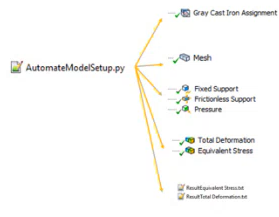
-
Customize the interface — for example, adding user-friendly buttons, or generating results and views that don't exist natively in Mechanical.
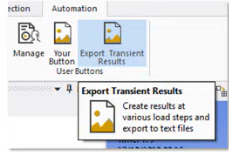
-
Process data by customizing plots, extracting values, and computing new derived data from your results.
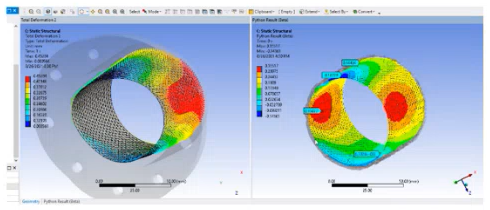
How it actually works under the hood. Scripts talk to Mechanical through the Mechanical API (Application Programming Interface), which exposes the native functionality of the application — the tree, the model, objects, analyses, and so on. Python is the language you use to access and manipulate that API. As of 2026, the scripting language built into Mechanical is CPython and IronPython 2.7 (which notably does not include the standard external libraries you'd be used to from CPython).
Importantly, this material focuses specifically on "in-product" scripting — meaning scripts you write and run inside the Mechanical interface itself, as opposed to driving Mechanical remotely from an external Python environment (which is the domain of PyAnsys, explicitly out of scope here).
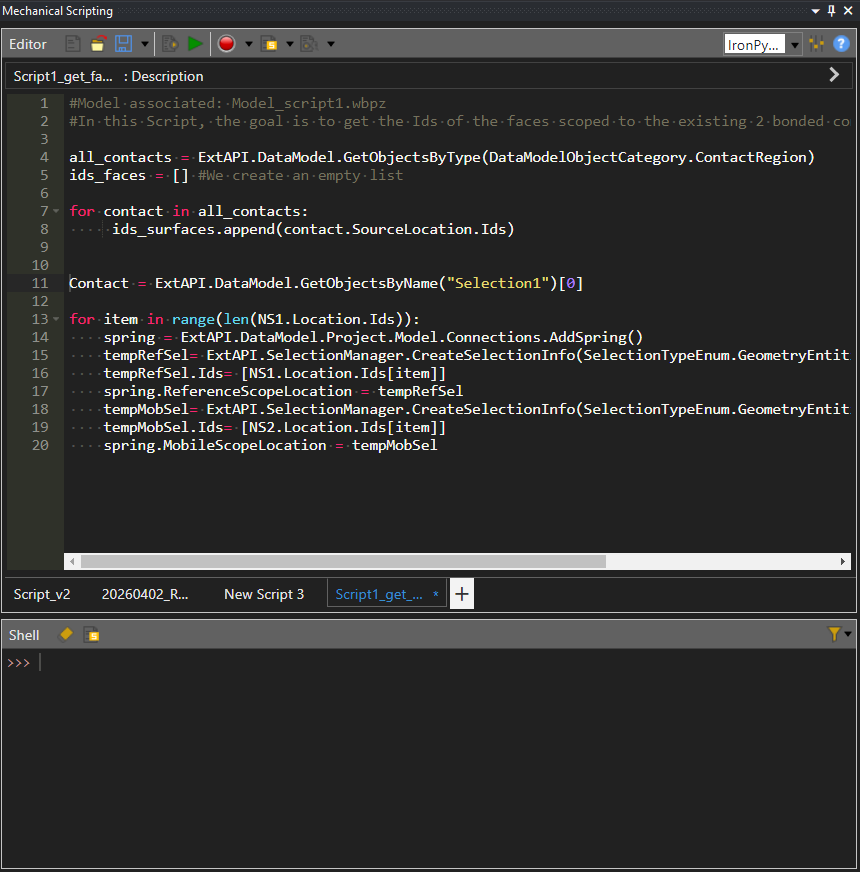
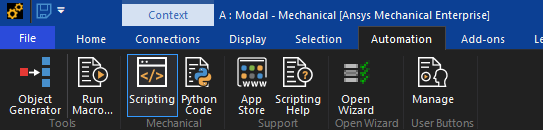
Where you'll actually write and run code. Mechanical has a built-in Scripting Console with a few key components you'll get familiar with quickly:
- A Script Editor, where the actual script lives — the code you can run, save, and even promote to a button on the interface.
- A Shell command prompt, which is a lightweight place to test small snippets of code and see immediate results, without needing a full script.
- Recording capabilities, which can capture the operations you perform in the GUI and turn them into code — useful for discovery, though with caveats covered later.
- Load/Save, Run, and Run-in-debug controls, plus a toggle between IronPython and CPython.

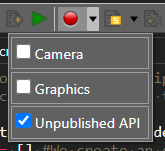
One practical setup note: to enable the unpublished API for recording and to enable CPython capabilities, you need to turn on some hidden options first. From the Workbench project, go to Tools → Options → Appearance and tick "Beta option," then validate. Then, inside Mechanical itself, go to Tools → Options → Mechanical and tick both "Record unpublished API" and "Show CPython Capabilities" if you have a version older than 2026R1.
With those pieces in place — the API, the console, and the language options — you have everything you need conceptually before writing a single line. The next article walks through an actual working script from start to finish, so you can see all of this in action.
