

Knowing the addressing rules is one thing; scripting quickly and without constant trial-and-error is another. This article collects the practical, day-to-day tips from the deck that make the console noticeably less frustrating to work in — plus how to turn a finished script into a reusable button.
Autocomplete should be your best friend. Typing a . after an object reference brings up a list of available properties and functions on that object, which is by far the fastest way to discover what you can do with something without hunting through documentation.
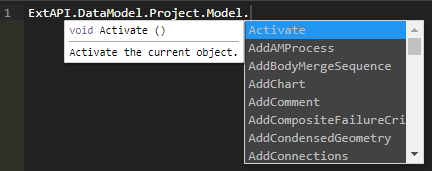
There is one important caveat: autocompletion doesn't always show every available option. If the list looks incomplete, the reliable fallback is to type dir() in the shell, which will return the full list of what's available on that object.
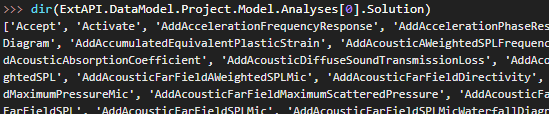
There's also a subtlety specific to the Script Editor (as opposed to the Shell): for autocompletion to work after a given variable name, the script generally needs to have already been run once, or that name needs to have first been assigned in the Shell. In other words, the editor's autocomplete relies on the variable actually existing in the current session — it doesn't do purely static analysis of your unrun code.
Keyboard shortcuts and quick checks. Ctrl + ↑ (up arrow) recalls your previous command in the shell, and can be pressed repeatedly to step back further through your command history — handy when you're iterating on a small snippet rather than typing it fresh each time.
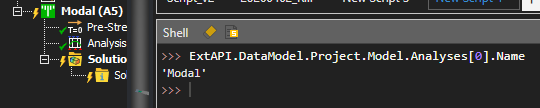
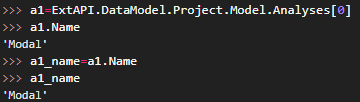
A simple but very useful habit: appending .Name to whatever you're currently referencing is a quick sanity check that confirms exactly what object you've navigated to, before you commit to modifying it.
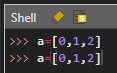
Give your long lookups a variable. Rather than re-typing a long chain like ExtAPI.DataModel.Project.Model.Analyses[0] every time you need it, assign it once to a short variable name and reuse that instead — it makes scripts both faster to write and much easier to read afterward.
Don't forget the parentheses. It sounds trivial, but it's a genuinely common stumbling block for people new to scripting: calling a function always requires the trailing (), even with no arguments — for example, Model.Mesh.GenerateMesh() rather than Model.Mesh.GenerateMesh. Forgetting the parentheses is one of the most frequent small errors that trips up first-time scripters, since Python won't necessarily throw an obvious error — it may just silently reference the function object instead of executing it.

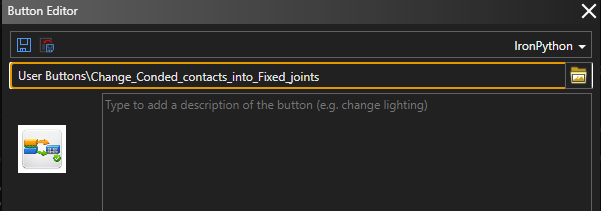
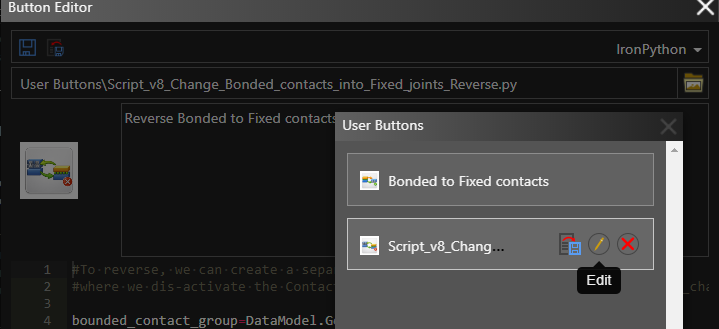
Turning a script into a button. Once a script is working the way you want, you don't have to keep it tucked away in the editor. The Mechanical Scripting console has a "Promote Script to Button" option, which walks you through naming the button and adding a description, and then surfaces it as a proper User Button in the interface — appearing in a Button Editor where it can be organized alongside other custom buttons you've created. From that point on, running your script is a single click for you or anyone else using that model, rather than reopening the console each time.

Taken together, these tips are less about any single powerful feature and more about compounding small efficiencies — faster discovery through autocomplete, faster iteration through shell history and .Name checks, more readable code through variables, and finally, turning a one-off script into a persistent, shareable tool via buttons. The next article shifts focus from writing scripts to using them responsibly and sustainably.
