

Once you've seen one script work end to end, the natural next question is: how do I know how to reach any object in the tree, not just the ones from the example? This article covers the addressing rule that underpins essentially every Mechanical script you'll ever write.
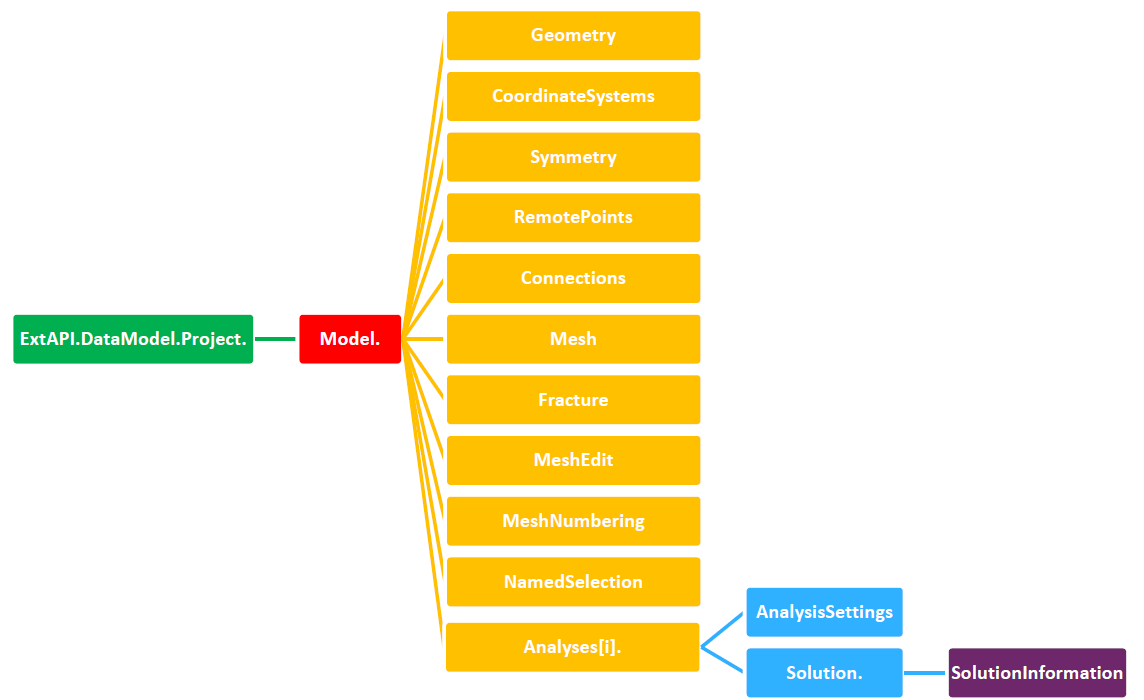
The core rule. Every object in the Mechanical tree can be reached starting from ExtAPI.DataModel.Project.Model.[...]. In current, recent versions of Mechanical, this is commonly shortened — you can start directly from Model.[...] rather than typing the full ExtAPI.DataModel.Project prefix each time, which is why the "Hello, Mechanical!" example in the previous article was able to start every line with simply Model.
There's an important branch in this rule depending on how many instances of a given object type can exist:
- If an object type can only ever have one instance in the tree (like the Mesh, or the general Model node), you address it directly by name —
Model.Mesh, for example. - If an object type can have multiple instances (like solids under Geometry, or multiple contacts, or multiple analyses), you need to go through
.Childrenor.GetChildren()and index into the result.
For example, the third solid body in a model's Geometry branch is reached with Model.Geometry.Children[2] (remembering that indexing starts at [0], so the third item is index 2).
![The tree with the third Solid under Geometry highlighted, corresponding to Model.Geometry.Children[2]](https://developer.synopsys.com/sites/default/files/inline-images/art3-02-third-solid-highlighted_0.png)
A worked example: finding face IDs on contacts. The deck extends this rule with a practical example — accessing and printing the face IDs scoped to contact regions in the tree, useful when you need to verify or report exactly which geometry a contact is touching.
📎 Files for this article:
Model1.wbpz·Model1_get_faces_Ids.py
Note: Model was created in 26R1
Here is the complete script, exactly as provided:
#Model associated: Model1.wbpz
#In this Script, the goal is to get the Ids of the faces scoped to the existing 2 bonded contacts (defined inside Connections)
contact_group=DataModel.GetObjectsByName("Contacts_to_change")[0] #Look for the first ([0]) object in the tree with the name "Contacts_to_change"
my_contact_faces=[] #Initiate a list
my_target_faces=[] #Initiate a list
for contact in contact_group.Children:#Loop for all the Children of "Contacts_to_Change" (2 here)
    my_contact_faces.append(contact.SourceLocation)
    my_target_faces.append(contact.TargetLocation)
IDs_contact_faces=[face.Ids[0] for face in my_contact_faces]
IDs_target_faces=[face.Ids[0] for face in my_target_faces]
print(IDs_contact_faces)
print(IDs_target_faces)
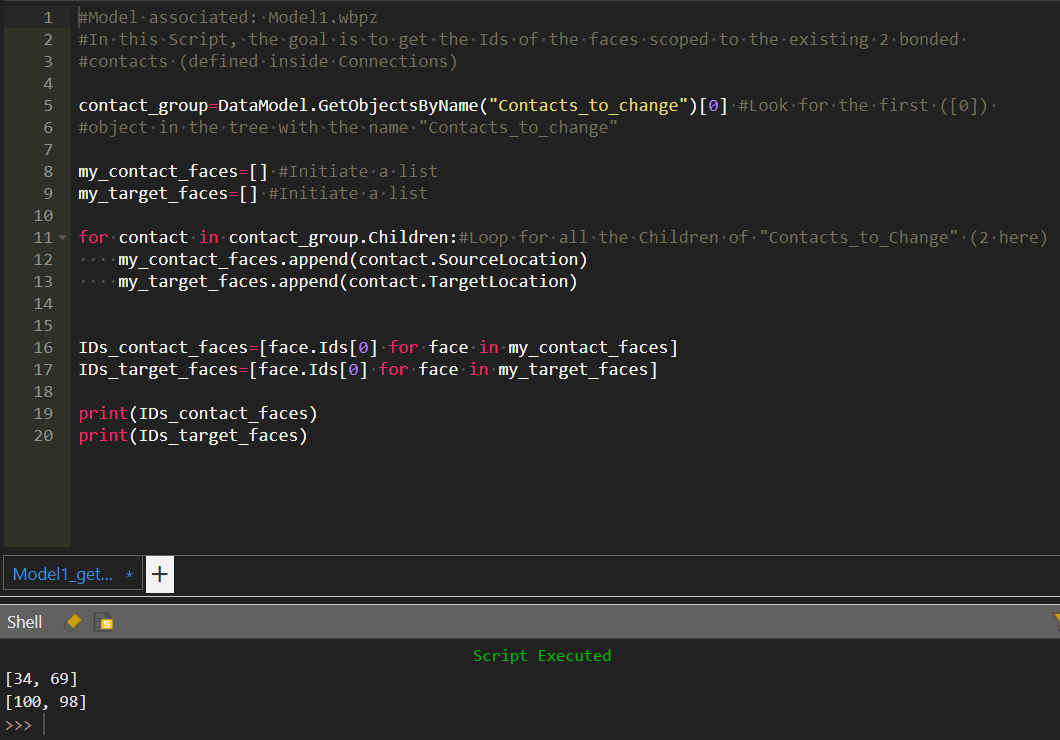
The pattern follows a few good habits worth internalizing:
- Use
DataModel.GetObjectsByName("...")to find an object in the tree by its display name, and store it in a variable (here,contact_group) so you don't have to re-type a long lookup call every time you need it.GetObjectsByNamereturns a list, so[0]picks out the first match. - From there, use
.Childrento step down into the individual contact objects, inside a loop so you can process every contact (and its target) in one pass rather than hardcoding each one. - Each child's source and target geometry is reached through the
SourceLocationandTargetLocationproperties, and the actual numeric face ID comes from indexing into.Ids[0]on each of those.
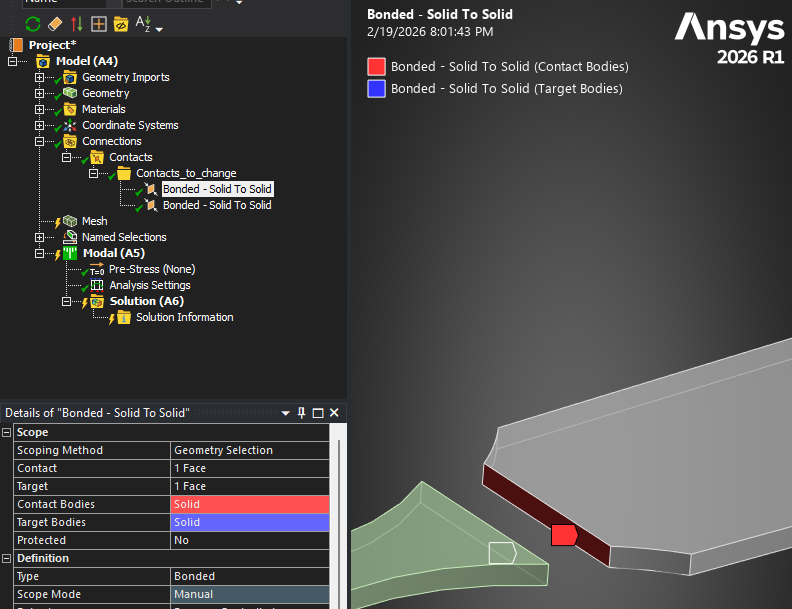
As a concrete illustration, getting the face ID of the first contact's target region is conceptually equivalent to writing a single chained expression:
DataModel.GetObjectsByName("Contacts_to_change")[0].Children[0].SourceLocation
— i.e., find the contact group by name, take the first match, step into its first child, and read its source location.
Beyond the tree itself: other access points. Not everything you need lives directly on the Model tree. A handful of other entry points cover common needs:
Ansys.Mechanical.Graphics.Tools— for setting legend features on plots and views.ExtAPI.SelectionManager— for working with entity selection (what's currently selected in the GUI).ExtAPI.DataModel.GeoData— for querying raw geometry information.ExtAPI.DataModel.GetObjectByName— for selecting a specific entity by its descriptive name.
Between the core addressing rule and these supplementary access points, you have essentially everything you need to navigate any Mechanical model programmatically — whether you're reading an existing setup, modifying it, or building a new one from scratch. The next article moves from how to reach things to how to work faster once you're there.
