Create scatter plots
Last update: 16.07.2025Export multiple attributes from a table and use the pandas, matplotlib and seaborn packages to compare material properties using 2D, 3D, and 4D scatter plots.
This example uses data from the MaterialUniverse table in the MI Training database.
Get data from Granta MI
Import the granta libraries and connect to Granta MI via the Service Layer using Windows authentication,
replacing my.server.name with the name of your Granta MI server. Specify a database and table.
from GRANTA_MIScriptingToolkit import granta as mpy

mi = mpy.connect("http://my.server.name/mi_servicelayer", autologon=True)
training_db = mi.get_db('MI Training')
training_db.unit_system = 'SI (Consistent)'
material_universe = training_db.get_table('MaterialUniverse')
Specify the records whose attributes you want to plot. In this case, all records in the table are used, but you can use other MI Scripting Toolkit methods to define a list of records (for example, search_criterion()).
records = material_universe.all_records(include_generics=False, include_folders=False)
Bulk export the attributes you want to plot. (The attribute names are stored in a list for later use.)
attributes = ['Designation', 'Base', 'Transparency', "Young's modulus", 'Density', 'Tensile strength',
              'Electrical resistivity']
material_universe.bulk_fetch(records, attributes=attributes)
Process the data using pandas
Build a DataFrame
A pandas DataFrame can be built from a List of Dicts, where each dictionary in the list corresponds to a separate row in the DataFrame. Each key-value pair in the Dict corresponds to a column and the cell value in that column,
respectively.
First generate the list of dictionaries, and then use this list to create a DataFrame. Here, we are using the Record.record_guid property as the DataFrame index, but any column with a unique value for each record can be used.
We also sort by the Base column to guarantee a repeatable row order.
import pandas as pd

def get_attr_vals(r):
    return {mi_attr: r.attributes[mi_attr].value for mi_attr in attributes}

data = [{'guid': r.record_guid, **get_attr_vals(r)} for r in records]
df = pd.DataFrame(data).set_index('guid').sort_values(by="Base")
Use the DataFrame .head() method to output the first few rows of the DataFrame and check the structure.
df.head()
| Designation | Base | Transparency | Young's modulus | Density | Tensile strength | Electrical resistivity | |
|---|---|---|---|---|---|---|---|
| guid | |||||||
| 00000e41-000e-4fff-8fff-dd92ffff0000 | 7075 | Al (Aluminum) | Opaque | {'low': 69000000000.0, 'high': 72538459777.83203} | {'low': 2781.691551208496, 'high': 2809.648036... | {'low': 386000000.0, 'high': 510000000.0} | {'low': 4.199999809265137e-08, 'high': 4.40000... |
| 00000e38-000e-4fff-8fff-dd92ffff0000 | 7075 | Al (Aluminum) | Opaque | {'low': 69000000000.0, 'high': 76000000000.0} | {'low': 2769.9999809265137, 'high': 2829.99992... | {'low': 434000000.0, 'high': 580000000.0} | {'low': 5.0999999046325684e-08, 'high': 5.3000... |
| 02401a77-c3e7-4b68-875c-7be3b735b703 | Tungsten Carbide | Carbide | Opaque | {'low': 599999999999.9996, 'high': 67000000000... | {'low': 15299.99999999999, 'high': 15900.00000... | {'low': 372999999.9999999, 'high': 529999999.9... | {'low': 6.309999847412099e-07, 'high': 1.00000... |
| 000009cc-000e-4fff-8fff-dd92ffff0000 | AISI 4130 | Fe (Iron) | Opaque | {'low': 200000000000.0, 'high': 210256408691.4... | {'low': 7790.849685668945, 'high': 7869.149684... | {'low': 862000000.0, 'high': 1241000000.0} | {'low': 2e-07, 'high': 2.5e-07} |
| 000009cb-000e-4fff-8fff-dd92ffff0000 | AISI 4130 | Fe (Iron) | Opaque | {'low': 200000000000.0, 'high': 210256408691.4... | {'low': 7794.244766235352, 'high': 7872.578620... | {'low': 621000000.0, 'high': 686368408.203125} | {'low': 2e-07, 'high': 2.5e-07} |
Process any range data
A DataFrame cell can contain any data type we choose to store in it. However, plotting packages such as matplotlib
require numerical values to be in a standard format. Some MI Scripting Toolkit data types, such as
ranges represented as dictionaries, are not in that format and have to be processed before plotting.
Below, we define a granta_mean function which takes a single dict as input and calculates either the arithmetic or
geometric mean (depending on the signs of the input values).
import math

def granta_mean(value):
    if value is None:
        return None
    if 'high' not in value:
        return value['low']
    if 'low' not in value:
        return value['high']
    product = value['low'] * value['high']
    if product > 0:
        gm = math.sqrt(product)
        if value['low'] > 0:
            return gm
        else:
            return -gm
    else:
        return sum(value.values())/2
Apply the granta_mean function to each cell in the Density, Young's modulus, Tensile strength, and Electrical
resistivity columns. Store the results in a new DataFrame, and check the output to ensure the data processing worked as
expected.
df_processed = df[['Density', "Young's modulus", 'Tensile strength', 'Electrical resistivity']].map(granta_mean)
df_processed.sort_values(by="Density").head()
| Density | Young's modulus | Tensile strength | Electrical resistivity | |
|---|---|---|---|---|
| guid | ||||
| 0000132e-000e-4fff-8fff-dd92ffff0000 | 922.225549 | 2.236068e+08 | 3.162278e+07 | 1.000000e+01 |
| 0000157d-000e-4fff-8fff-dd92ffff0000 | 1049.571352 | 2.408319e+09 | 3.872983e+07 | 9.949874e+13 |
| 00001584-000e-4fff-8fff-dd92ffff0000 | 1079.953746 | 1.999375e+09 | 4.289522e+07 | 9.949874e+13 |
| 00001ca7-000e-4fff-8fff-dd92ffff0000 | 1095.415362 | 7.509658e+05 | 8.289964e+06 | 3.160000e+10 |
| 00001570-000e-4fff-8fff-dd92ffff0000 | 1134.988977 | 1.308128e+10 | 1.064425e+08 | 3.162278e-02 |
Since the columns now contain numeric data, we can use the .describe() method to provide some initial insights into
the distribution of values in the table. (This also confirms that the granta_mean function worked as expected.)
df_processed.describe()
| Density | Young's modulus | Tensile strength | Electrical resistivity | |
|---|---|---|---|---|
| count | 29.000000 | 2.900000e+01 | 2.900000e+01 | 2.900000e+01 |
| mean | 3056.118133 | 7.441616e+10 | 3.107848e+08 | 2.184037e+15 |
| std | 3201.106148 | 1.256091e+11 | 4.631297e+08 | 4.056391e+15 |
| min | 922.225549 | 7.509658e+05 | 8.289964e+06 | 4.298837e-08 |
| 25% | 1184.905061 | 2.408319e+09 | 3.863832e+07 | 1.689970e-06 |
| 50% | 1369.963508 | 1.308128e+10 | 6.816744e+07 | 4.000000e+13 |
| 75% | 2799.839234 | 8.692341e+10 | 4.446234e+08 | 1.000000e+15 |
| max | 15597.115118 | 6.340347e+11 | 1.775671e+09 | 1.000000e+16 |
Process any discrete or short text data
The Designation column is based on a short-text attribute, which is represented as a string and can be used as is.
The columns Transparency and Base are based on discrete attributes. Since they are single-valued, they contain strings and so can also be used as is.
df_processed[['Transparency', 'Base', 'Designation']] = df[['Transparency', 'Base', 'Designation']]
df_processed.sort_values(by="Density").head()
| Density | Young's modulus | Tensile strength | Electrical resistivity | Transparency | Base | Designation | |
|---|---|---|---|---|---|---|---|
| guid | |||||||
| 0000132e-000e-4fff-8fff-dd92ffff0000 | 922.225549 | 2.236068e+08 | 3.162278e+07 | 1.000000e+01 | Opaque | Other | Leather |
| 0000157d-000e-4fff-8fff-dd92ffff0000 | 1049.571352 | 2.408319e+09 | 3.872983e+07 | 9.949874e+13 | Opaque | Polymer | Acrylonitrile Butadiene Styrene (Extrusion) |
| 00001584-000e-4fff-8fff-dd92ffff0000 | 1079.953746 | 1.999375e+09 | 4.289522e+07 | 9.949874e+13 | Transparent | Polymer | Acrylonitrile Butadiene Styrene (Transparent, ... |
| 00001ca7-000e-4fff-8fff-dd92ffff0000 | 1095.415362 | 7.509658e+05 | 8.289964e+06 | 3.160000e+10 | Translucent | Polymer | Polyvinyl chloride elastomer (ultra high molec... |
| 00001570-000e-4fff-8fff-dd92ffff0000 | 1134.988977 | 1.308128e+10 | 1.064425e+08 | 3.162278e-02 | Opaque | Polymer | Acrylonitrile Butadiene Styrene/20% PAN Carbon... |
Specify column units
DataFrame doesn't have a built-in method for specifying the units of a column. For this script, we will create a separate dict that provides a simple mapping between column headings and units.
units = {mi_attr: material_universe.attributes[mi_attr].unit for mi_attr in attributes
         if material_universe.attributes[mi_attr].unit}
units
Previous cell output:
{"Young's modulus": 'Pa',
 'Density': 'kg/m^3',
 'Tensile strength': 'Pa',
 'Electrical resistivity': 'ohm.m'}
Create scatter plots using pandas
This snippet of code is optional, and is included to increase the size of all plots generated in this notebook:
import matplotlib.pyplot as plt
plt.rcParams['figure.dpi'] = 125
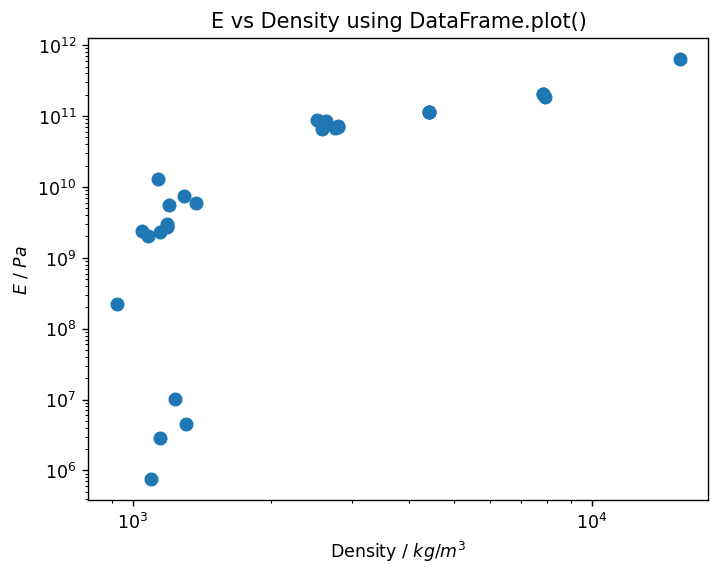
Use the built-in .plot() method to plot the data in your DataFrame.
By default, .plot() uses matplotlib to generate plots. Text wrapped in dollar signs is processed as LaTeX-style math text.
density_unit = units['Density']
ym_unit = units["Young's modulus"]
density_label = rf'Density / ${density_unit}$'
ym_label = rf'$E$ / ${ym_unit}$'

_ = df_processed.plot(x='Density',
                      y="Young's modulus",
                      kind='scatter',
                      s=50,
                      loglog=True,
                      xlabel=density_label,
                      ylabel=ym_label,
                      title = 'E vs Density using DataFrame.plot()')
Create scatter plots with matplotlib
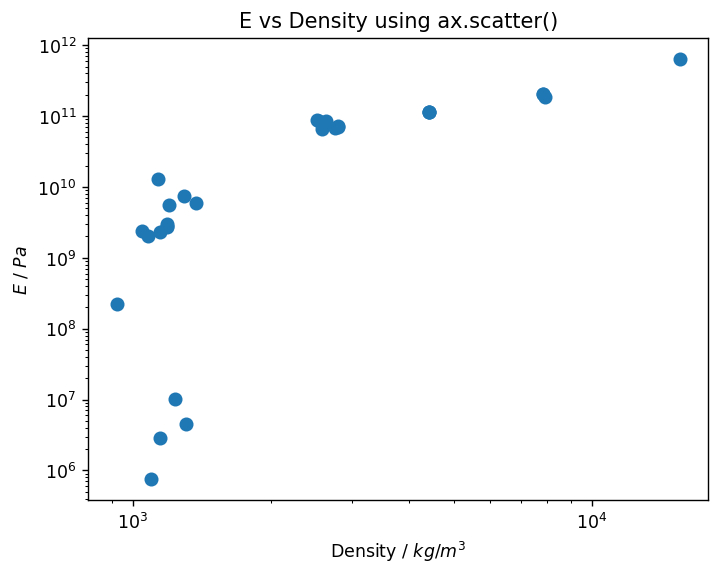
Alternatively, you can use matplotlib directly with the DataFrame as an input. For comparison, here is the same plot using matplotlib. The result is the same, but the figure and axes are first created with plt.subplots(), the axis scales and labels modified, and then the ax.scatter() method is used to create the plot itself. Finally, the top-level plt object is used to add a title.
import matplotlib.pyplot as plt

fig, ax = plt.subplots()
ax.set_yscale('log')
ax.set_xscale('log')
ax.set_ylabel(ym_label)
ax.set_xlabel(density_label)
ax.scatter(data=df_processed, x='Density', y="Young's modulus", s=50)
_ = ax.set_title('E vs Density using ax.scatter()')
Plotting data by category (discrete values)
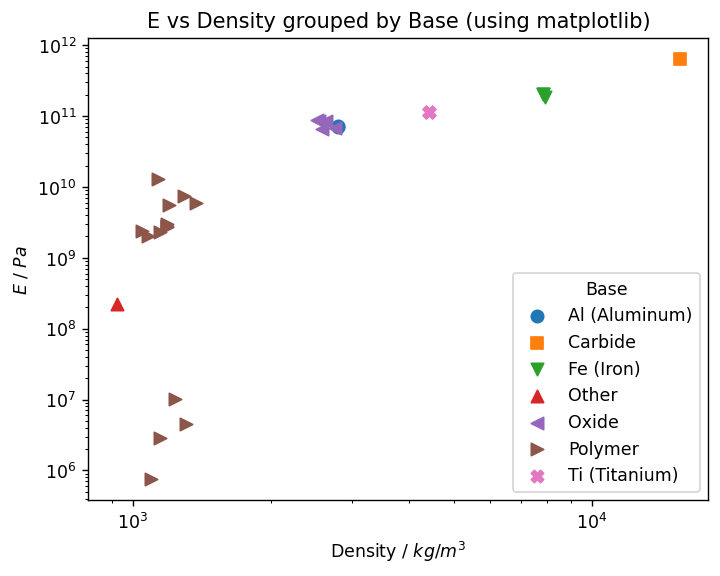
Using matplotlib directly allows us to use the full power and flexibility of the package. For example, you can create a plot color-coded by the value of a discrete attribute by iteratively adding scatter plots to the same set of axes.
The simplest way to implement this is to use the .groupby() DataFrame method, which generates a set of groupby
objects. These behave like individual DataFrames, and can be plotted similarly to the previous example. matplotlib will
automatically increment the marker color for each new plot.
In the example below, the full DataFrame is separated into separate groupby objects that share the same Base value. These DataFrame rows are each plotted on their own scatter plot with a separate color. The marker is incremented manually
through a pre-defined list, which ensures accessibility for users with color vision deficiencies.
fig, ax = plt.subplots()
ax.set_yscale('log')
ax.set_xscale('log')
ax.set_ylabel(ym_label)
ax.set_xlabel(density_label)

markers = ["o", "s", "v", "^", "<", ">", "X"]

for idx, (key, df) in enumerate(df_processed.groupby('Base')):
    marker = markers[idx]
    ax.scatter(data=df, x='Density', y="Young's modulus", label=key, s=50, marker=marker)
ax.set_title('E vs Density grouped by Base (using matplotlib)')
_ = plt.legend(title='Base')
Creating a 3D scatter plot
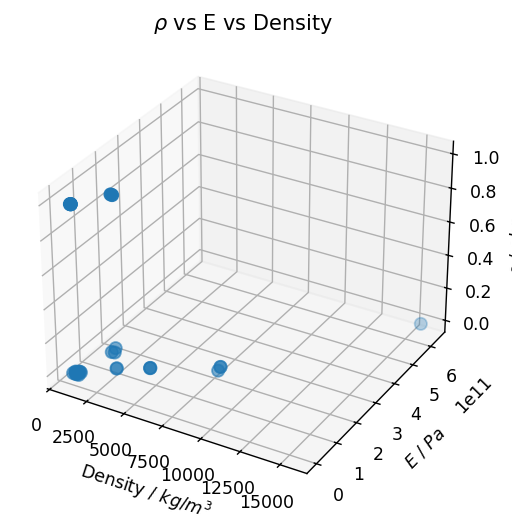
The set-up of a 3D scatter plot is slightly different to the 2D examples above, because the z-axis must be added as a subplot. Use figure() and add_subplot(projection='3d') to create a 3D figure, then use an alternative syntax to plot the data (in previous plots, the data was added using DataFrame column names, whereas this example plots the arrays themselves).
rho_unit = units['Electrical resistivity']
rho_label = rf'$\rho$ / ${rho_unit}$'

fig = plt.figure()
ax = fig.add_subplot(projection='3d')
ax.set_ylabel(ym_label)
ax.set_xlabel(density_label)
ax.set_zlabel(rho_label)

ax.scatter(df_processed['Density'], df_processed["Young's modulus"], df_processed['Electrical resistivity'], s=50)
_ = ax.set_title(r'$\rho$ vs E vs Density')
Adding a continuous color axis to a 2D scatter plot
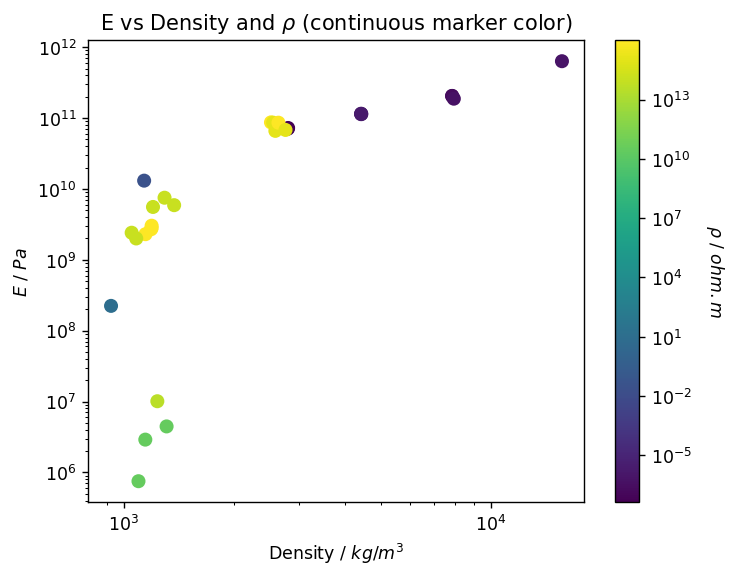
Add a continuous color axis using the c and cmap arguments to the plot.scatter() constructor.
This example uses the optional norm argument to specify an alternative method of mapping numeric values to a color in the
colormap. The color_norm variable contains a logarithmic normalization which ensures color variation is used across all values of electrical resistivity.
The viridis colormap is perceptually uniform (monotonically increases in luminance) so is accessible to users with color vision deficiencies.
import matplotlib.colors as colors

rho_unit = units['Electrical resistivity']
rho_label = rf'$\rho$ / ${rho_unit}$'

fig, ax = plt.subplots()
ax.set_yscale('log')
ax.set_xscale('log')
ax.set_ylabel(ym_label)
ax.set_xlabel(density_label)

res_min = df_processed['Electrical resistivity'].min()
res_max = df_processed['Electrical resistivity'].max()
color_norm = colors.LogNorm(vmin=res_min, vmax=res_max)

sc = plt.scatter(data=df_processed,
                 x='Density',
                 y="Young's modulus",
                 c="Electrical resistivity",
                 s=50, cmap='viridis',
                 norm=color_norm)
cbar = plt.colorbar(sc)
cbar.set_label(rho_label, rotation=270, labelpad=20)
_ = ax.set_title(r'E vs Density and $\rho$ (continuous marker color)')
Plotting data by category (binned point or range values)
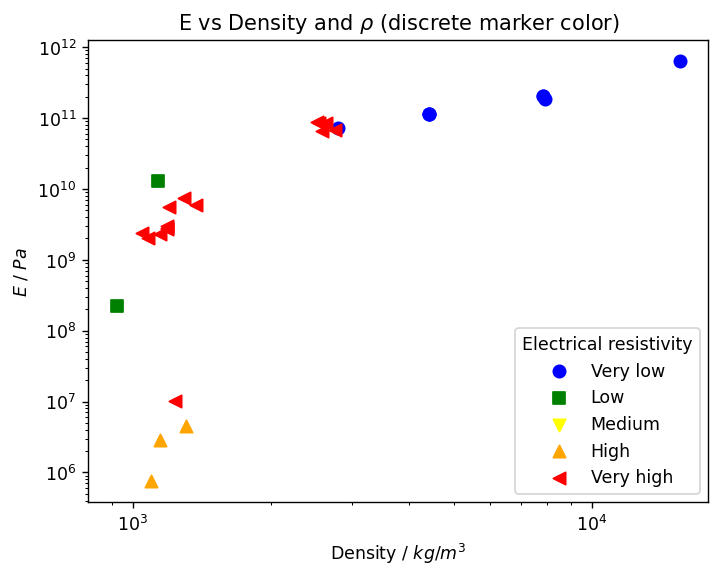
For this plot, we first use numpy.geomspace() to define 5 logarithmically-spaced bins and DataFrame.cut() to map the
continuous Electrical resistivity values to those categories.
import numpy as np
min_value = df_processed['Electrical resistivity'].min()
max_value = df_processed['Electrical resistivity'].max()

# The number of values is calculated between the two values, and is one more than the required number of bins
spacing = np.geomspace(min_value, max_value, 6)

df_processed['Electrical resistivity (binned)'] = pd.cut(df_processed['Electrical resistivity'],
                                                         spacing,
                                                         labels=['Very low', 'Low', 'Medium', 'High', 'Very high'])
df_processed.head()
| Density | Young's modulus | Tensile strength | Electrical resistivity | Transparency | Base | Designation | Electrical resistivity (binned) | |
|---|---|---|---|---|---|---|---|---|
| guid | ||||||||
| 00000e41-000e-4fff-8fff-dd92ffff0000 | 2795.634849 | 7.074711e+10 | 4.436891e+08 | 4.298837e-08 | Opaque | Al (Aluminum) | 7075 | NaN |
| 00000e38-000e-4fff-8fff-dd92ffff0000 | 2799.839234 | 7.241547e+10 | 5.017171e+08 | 5.199038e-08 | Opaque | Al (Aluminum) | 7075 | Very low |
| 02401a77-c3e7-4b68-875c-7be3b735b703 | 15597.115118 | 6.340347e+11 | 4.446234e+08 | 7.943551e-07 | Opaque | Carbide | Tungsten Carbide | Very low |
| 000009cc-000e-4fff-8fff-dd92ffff0000 | 7829.901810 | 2.050641e+11 | 1.034283e+09 | 2.236068e-07 | Opaque | Fe (Iron) | AISI 4130 | Very low |
| 000009cb-000e-4fff-8fff-dd92ffff0000 | 7833.313776 | 2.050641e+11 | 6.528666e+08 | 2.236068e-07 | Opaque | Fe (Iron) | AISI 4130 | Very low |
Then, we can use .groupby() to plot each bin with a different color and shape of marker. A cycler.cycler object specifies which colors will be used for each separate scatter plot.
from cycler import cycler

fig, ax = plt.subplots()
ax.set_yscale('log')
ax.set_xscale('log')
ax.set_ylabel(ym_label)
ax.set_xlabel(density_label)

ax.set_prop_cycle(cycler('color', ['blue', 'green', 'yellow', 'orange', 'red']))

for idx, (key, df) in enumerate(df_processed.groupby('Electrical resistivity (binned)', observed=False)):
    marker = markers[idx]
    ax.scatter(data=df, x='Density', y="Young's modulus", label=key, s=50, marker=marker)
plt.legend(title='Electrical resistivity', loc='lower right')
_ = ax.set_title(r'E vs Density and $\rho$ (discrete marker color)')
Create scatter plots with seaborn
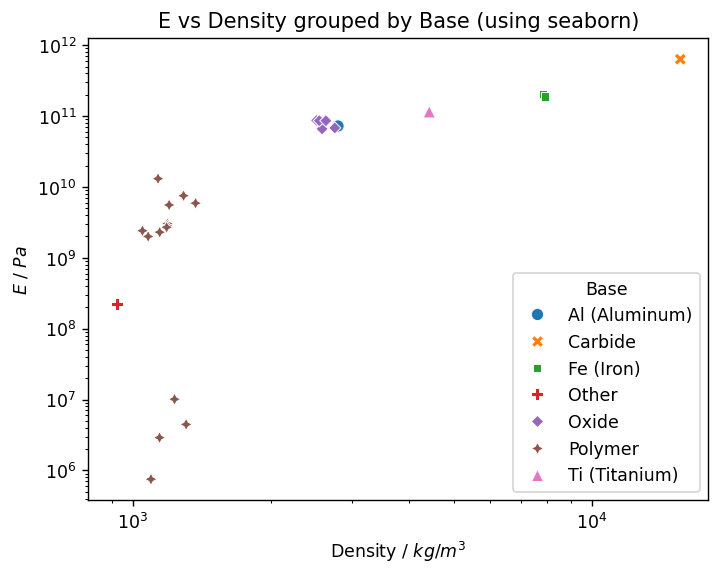
An alternative to using matplotlib directly is to use seaborn, a wrapper of matplotlib that aims to make it easier to create professional-looking plots.
For example, here is the E vs rho plot grouped by 'Base' in seaborn. Note that the plot itself is defined in one line, and we can specify DataFrame columns to use for the marker hue and style with no additional steps. The legend is created automatically.
from itertools import cycle, islice
import seaborn as sns

ax = sns.scatterplot(data=df_processed, x="Density", y="Young's modulus", hue="Base", style="Base", s=50)
ax.set_xscale('log')
ax.set_xlabel(density_label)
ax.set_yscale('log')
ax.set_ylabel(ym_label)
ax.set_title('E vs Density grouped by Base (using seaborn)')
Previous cell output:
Text(0.5, 1.0, 'E vs Density grouped by Base (using seaborn)')
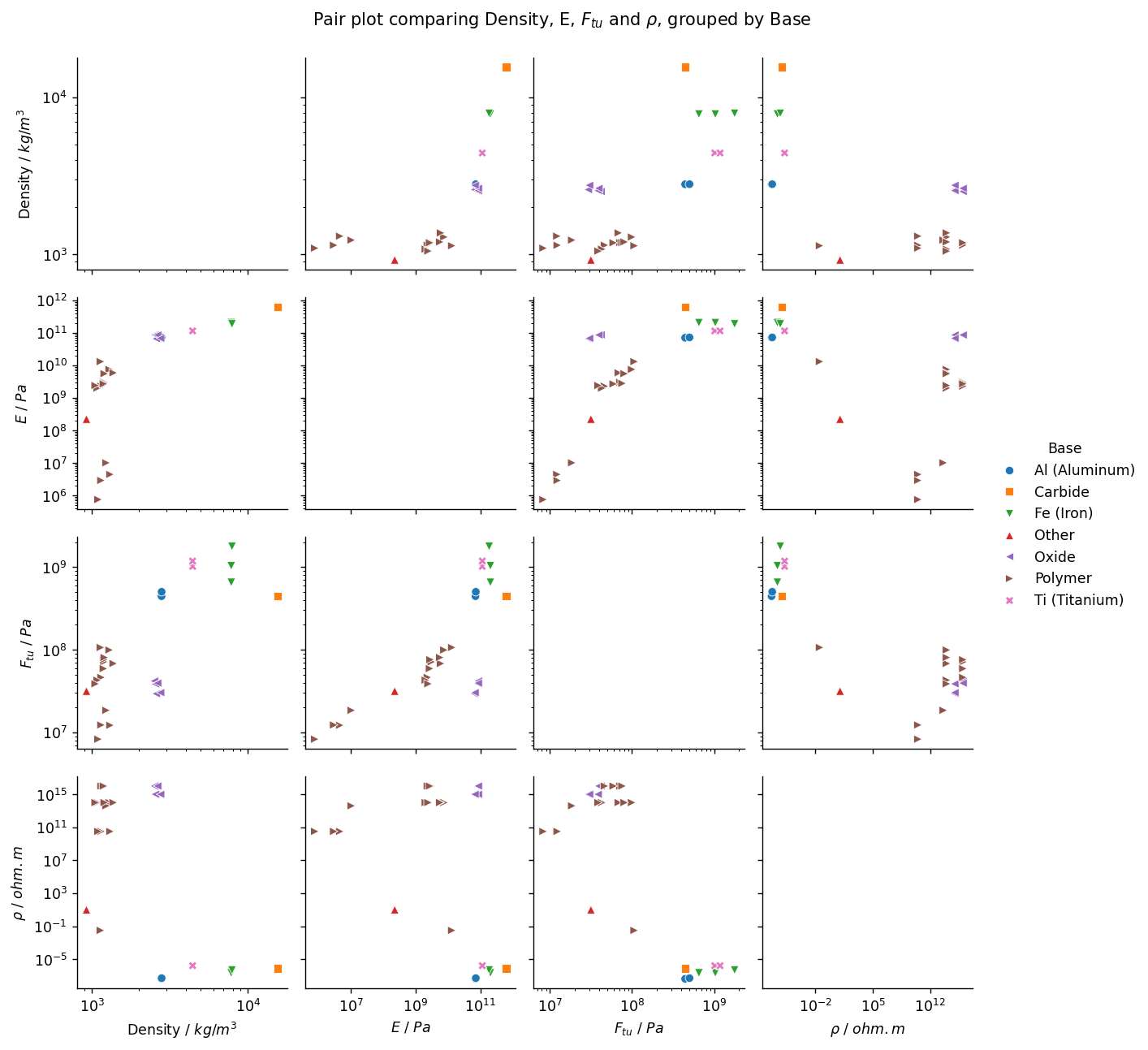
Plotting in n dimensions (pair plots)
The seaborn package doesn't expose matplotlib's 3D scatter plotting functionality. However, it can produce stacked (paired) plots of any dimensionality as required. The example below shows a comparison across 4 continuous dimensions.
To avoid having to set the label of each axis, we've created a new DataFrame with the desired axis labels as column names. The labelling is then done automatically.
Although sns.pairplot doesn't have a style argument, you can provide a list of markers instead. This must be the same length as the number of categories. Here, we use itertools to cycle through the marker style list to get the correct number.
ftu_unit = units['Tensile strength']
ftu_label = rf'$F_{{tu}}$ / ${ftu_unit}$'

column_mapping = {'Density': density_label,
                  "Young's modulus": ym_label,
                  'Tensile strength': ftu_label,
                  'Electrical resistivity': rho_label}
df_pairplot = df_processed.rename(columns=column_mapping)

fig = plt.figure()
base_count = df_pairplot['Base'].nunique()
base_markers = list(islice(cycle(markers), 0, base_count))
g = sns.pairplot(vars=[density_label, ym_label, ftu_label, rho_label],
                 data=df_pairplot,
                 hue="Base",
                 markers=base_markers,
                 diag_kind='None')

for i in range(len(g.axes)):
    for j in range(len(g.axes[i])):
        g.axes[i,j].set_xscale('log')
        g.axes[i,j].set_yscale('log')
_ = g.fig.suptitle(r'Pair plot comparing Density, E, $F_{{{tu}}}$ and $\rho$, grouped by Base', y=1.03)
Previous cell output:
<Figure size 800x600 with 0 Axes>